Why Your AI Images Look Fake and How It Feels to Fail
You open your favorite AI generator with a beautiful vision in your mind. You type what you think is a good prompt and press enter. You wait with excitement as the progress bar ticks up.
Then, the final image loads, and your heart immediately sinks. The skin looks like cheap shiny plastic, the hands have extra fingers, and the eyes look completely dead.
It is incredibly frustrating to waste your limited free time on these bad results. You feel like you are speaking a completely different language than the computer program. This constant struggle makes many creative people want to quit entirely.
It hurts to watch other creators post breathtaking, lifelike photos online while your own outputs look like creepy video game characters. You want to make beautiful things, but the technology feels like a giant wall in your way.
The Trap of Bad Advice and Magic Words
Many popular internet guides tell you to just add words like "hyperrealistic" or "8K resolution" to your text.
These generic buzzwords actually confuse modern AI models and make your images look over-processed and cheap.
Most social media influencers show off amazing pictures but hide the actual complex prompts they used to make them.
You end up copying and pasting random formulas that do not match the specific vision inside your head.
This endless cycle of poor tutorials keeps you trapped in a loop of trial, error, and deep disappointment.
You waste your paid credits on bad generations because you are following outdated advice from self-proclaimed gurus.
How Creative Failure Affects Your Peace of Mind
When every single generation fails to look real, you begin to doubt your own creative talent.
You start to feel like you are not smart enough to master these new and exciting digital tools.
Watching others succeed easily on social media makes you feel left behind and highly anxious.
The constant struggle turns what should be a fun, relaxing hobby into a source of daily stress.
You lose your initial excitement for creating because the tool feels impossible to control.

The Science of Talking to AI: How Computers Read Your Words
Before we write a single word, we must understand how the computer thinks. An AI model does not see the world the way you and I do. It does not know what "beautiful" or "amazing" actually means because those are human feelings.
Instead, the AI looks for patterns, textures, and specific objects that it learned from billions of real photos. When you write a prompt, you are giving the machine a map to find those patterns.
If your map is blurry, the final photo will be blurry and weird too. We need to use clear, physical words that describe real things we can see and touch.
Step 1: Replace Generic Jargon with Concrete Photographic Details
The biggest mistake people make is using lazy words. If you write "a realistic photo of a man," the AI has to guess almost everything. It guesses the camera, the lighting, the background, and the man's expression.
When the computer guesses, it usually makes a mistake. You need to take away the guessing game. You do this by describing the scene like a professional photographer would.
Code
Instead of: "A photorealistic portrait of an old woman."
Try this: "A close-up camera portrait of a ninety-year-old woman with deep wrinkles, soft grey hair, and a gentle smile."
The Death of "Photorealistic" and "Ultra-HD"
Stop using the word "photorealistic" in your prompts right now. When you use that word, the AI looks at digital art that people labeled as "photorealistic" on the internet.
Most of that digital art is painted by hand and looks slightly fake or stylized. By using that word, you are actually telling the AI to make a painting, not a real photo.
Instead, use words that imply a photo exists. Describe the camera type, the lens, or the specific setting instead of begging the AI for realism.
Use Real Camera Settings and Lens Descriptions
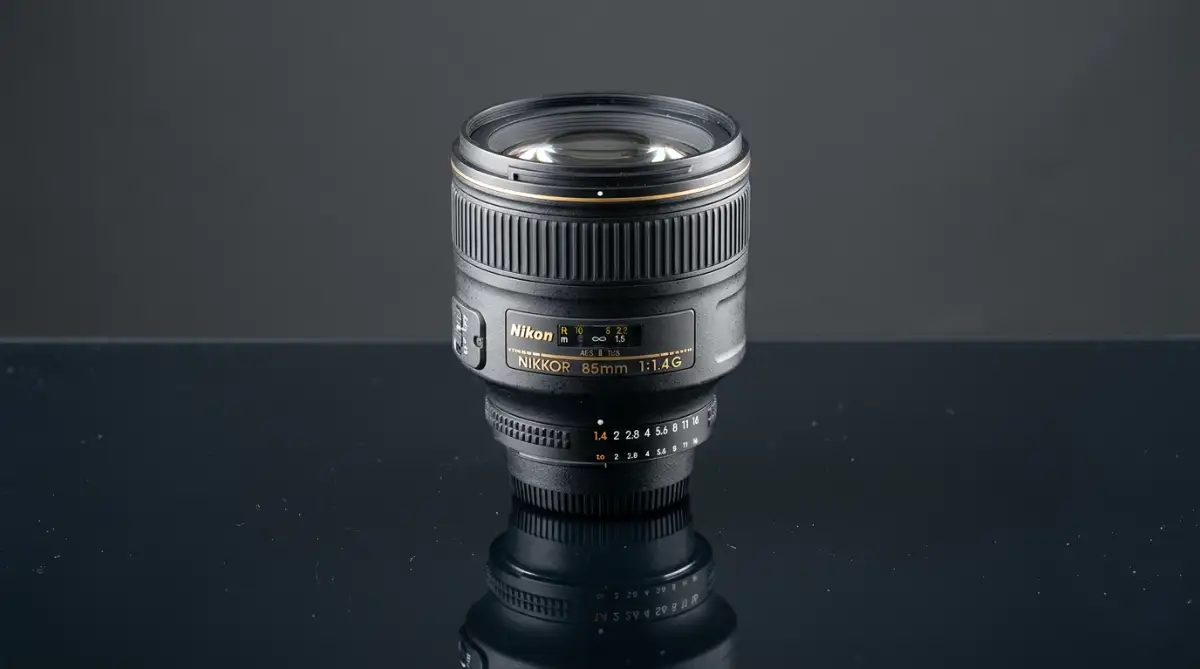
If you want a realistic image, you should talk about camera gear. You do not need to be a professional photographer to do this.
You just need to know a few basic camera terms that the AI understands. Mentioning specific lenses tells the AI exactly how to style the focus and depth of the image.
Use "85mm lens" for beautiful outdoor portraits with a soft, blurry background.
Use "35mm lens" for street photography that captures the person and their surroundings clearly.
Use "macro lens" when you want extreme close-up shots of tiny details like water drops or insects.
Specify "shot on 35mm film" if you want a warm, nostalgic look with natural film grain.
Describe the angle by using terms like "eye-level shot," "low-angle view," or "wide-angle perspective."
Think of the AI as a camera operator standing in front of you. If you do not tell them where to stand or what lens to use, they will just take a random shot. Giving these simple camera details changes the entire structure of the generated image.
Step 2: Master the Art of Lighting Descriptions
Lighting is the single most important element in photography. It is also the most important element in AI image generation.
Bad lighting makes an image look flat, cheap, and highly artificial. Real life is full of complex shadows, highlights, and color bounces.
If you do not describe the light, the AI will use a default, bright studio light. This default light is what makes skin look like plastic.
Code
Instead of: "A man standing in a forest, realistic light."
Try this: "A man standing in a dense pine forest, warm golden hour sunlight filtering through the green leaves, creating soft shadows on his face."
Why Bad Lighting Destroys AI Realism
Default AI lighting is usually too perfect and even. Real human faces have shadows under the nose, eyes, and chin.
Without these shadows, our brains immediately know the image is fake. We must guide the AI to place shadows in the right places by choosing the right light source.
Lighting Types That AI Models Understand Instantly
To get consistent results, you should use specific terms for your lighting. Here are some of the best lighting descriptions you can write:
Golden Hour Light: This is the warm, orange light that happens right before sunset. It makes skin tones look healthy and soft.
Overcast Day Light: This creates very soft, even light with almost no harsh shadows. It is perfect for moody or natural portraits.
Dramatic Side Lighting: This places light on only one side of the subject. It creates deep shadows on the other side, adding mystery and depth.
Volumetric Dust Light: This creates visible rays of light shining through a dusty room or a foggy forest.
Neon Glow: This uses bright, colorful lights from street signs to cast blue, red, or purple reflections on surfaces.
By choosing one of these lighting styles, you instantly give your image a professional mood. The AI will calculate how that specific light bounces off skin, clothes, and metal.
Step 3: Define Textures, Materials, and Imperfections
Perfect things do not exist in the real world. Real things have dust, scratches, pores, and uneven surfaces.
If you want your AI images to look real, you must ask for these tiny imperfections. AI models love to make everything smooth and clean by default.
You have to force the model to add grit and texture to the scene. This is the secret step that separates amateur prompt writers from experts.
Code
Instead of: "A clean modern kitchen."
Try this: "A cozy kitchen with slightly scratched marble countertops, water droplets near the steel sink, and light dust visible in the air."
The Secret is in the Flaws
When we look at a photo, our eyes look for small clues to check if it is real. If a table has no scratches, we think it is a digital 3D model.
If a person's skin is perfectly smooth with no lines, we think they are a robot. We must actively describe these natural flaws to build trust with the viewer's eyes.
How to Describe Skin, Fabric, and Surfaces
To make your images look lifelike, you need to use sensory words. Describe how things would feel if you reached out and touched them.
For human skin: Mention "visible skin pores," "freckles," "tiny sweat drops," or "fine facial hair."
For clothing fabrics: Use words like "coarse wool knits," "wrinkled linen," "heavy denim texture," or "frayed cotton edges."
For outdoor scenes: Add details like "cracked wet mud," "moss growing on damp stone," or "rust on old metal gates."
For indoor spaces: Describe "smudged glass windows," "scuffed wooden floorboards," or "soft pet hair on the fabric sofa."
These small details might seem minor, but they completely transform the final output. They give the AI model specific instructions to generate complex textures instead of flat colors.
Putting It All Together: The Ultimate Prompt Anatomy
Now that you know the three steps, let us see how they fit together. A perfect prompt is like a short story written in a very specific order.
We start with the main subject, add the specific environment, set the lighting, choose the camera details, and finish with the textures. This structured approach helps the AI process your request without getting confused.
Code
[Main Subject] + [Detailed Environment] + [Specific Lighting] + [Camera Settings] + [Real-world Textures]
Let us use this simple formula to build a highly realistic prompt from scratch. We will design a scene featuring an old craftsman in his workshop.
Main Subject: An elderly watchmaker with silver hair and magnifying glasses resting on his forehead.
Detailed Environment: Sitting at a cluttered wooden workbench covered in tiny brass gears, springs, and small screwdrivers.
Specific Lighting: Warm yellow light from a single adjustable desk lamp, casting long, soft shadows across the table.
Camera Settings: Close-up macro shot, captured on a 50mm lens, shallow depth of field with a softly blurred background.
Real-world Textures: Speckles of dust floating in the lamp light, visible wood grain on the old table, and oil stains on his fingers.
When you merge these elements into one continuous paragraph, you get a powerful prompt. The AI will not have to guess anything.
It will build a rich, lifelike photo that looks like it was taken by a professional documentary photographer. You will finally get the realistic results you have been searching for.
Deep Prompting: Expert Strategies for Photorealistic AI Mastery
Now that we understand the basics of camera gear and natural lighting, we can explore advanced techniques. Master prompt designers do not just describe the subject and hope for the best. They use specific layout rules and color guides to direct the AI brain.
Step 4: Direct the Camera with Angles and Framing
The way you frame a photo tells a story without using words. AI tools respond incredibly well to cinematic framing terms. If you leave framing out, the AI will default to a standard, boring centered portrait.
To fix this, you should specify the shot size and the angle of the camera. Imagine you are a film director calling the shots on a movie set.
Extreme Close-Up (ECU): This directs the AI to focus entirely on one tiny area. It is perfect for capturing the detailed texture of an eye, a drop of water, or a single wrinkle.
Medium Close-Up (MCU): This frames the subject from the chest up. It is the gold standard for high-quality human portraits because it balances the face and the outfit.
Wide Angle Shot: This pushes the camera back to show the subject and their entire environment. It helps the AI build a believable world around your main character.
Low-Angle View: Shooting from below makes the subject look powerful and heroic. The camera points upward, making buildings or people look tall and grand.
Bird’s Eye View: This places the camera directly above the scene, looking straight down. It works beautifully for clean layouts, city streets, or dining tables covered in food.
Let us look at how this works in a real scenario. If you want a photo of an explorer, do not just say "an explorer."
Instead, ask for a "low-angle medium shot of an explorer." This small change instantly forces the AI to position the camera down low, making the character look brave and adventurous against the sky.
Step 5: Control the Color Grading and Vintage Film Stocks
Real photos are rarely perfectly neutral in color. Professional photographers use specific film brands and chemical development methods to get unique color styles. You can type these real-world color styles into your prompts to instantly bypass the shiny digital art look.
Modern AI generators have studied millions of classic analog photographs. They know exactly how different vintage camera films handle light and color.
Kodak Portra 400: This film stock is famous for its warm, natural skin tones and soft contrast. It is the perfect choice for outdoor family photos or natural street portraits.
Fujifilm Superia: This film has a cooler, green-toned tint that works beautifully for rainy city streets or moody forest paths.
Muted Color Palette: This tells the AI to tone down bright, saturated colors. It gives your image a soft, elegant, and highly realistic appearance.
Monochromatic Tone: This creates a black-and-white look with rich contrast and deep shadows, making the image look timeless and artistic.
Warm Amber Tint: This adds a cozy, gold-like glow to the scene, simulating a cozy indoor fireplace or a late afternoon sun.
For example, imagine you are generating a scene of a busy outdoor market. If you add "shot on Kodak Portra 400, muted color palette" to your prompt, the AI will instantly replace the bright neon colors with soft, natural tones.
The image will suddenly look like a real photograph from a travel magazine instead of a computerized painting.
Building a Personal System for Long-Term Prompting Success
To keep getting high-quality results every single day, you must treat prompt writing like a science experiment. Never change five things in your prompt at the same time. If the image looks bad, you will not know which word caused the issue.
Instead, change only one word or phrase at a time and run the generation again. This is called the single-variable test method.
- Keep a simple digital notebook on your computer or phone.
- Copy and paste the prompts that give you amazing, lifelike results.
- Group your favorite prompts into categories like "Portraits," "Scenery," and "Product Shots."
- Build your own starter templates so you never have to face a blank input box again.
This simple habit saves your valuable generation credits and keeps your creative mind calm. Over time, you will develop a deep intuition for exactly how the AI will respond to your favorite words.

The Blind Spots: Five Massive Mistakes That Ruin Your AI Images
Even with advanced knowledge, it is easy to fall into common trap patterns. Many creators make the same repeating errors that ruin their generations. By learning these pitfalls, you can protect your workflow and get clean results much faster.
1. Overloading the Prompt with Too Many Adjectives
We often feel the urge to describe every single tiny detail in a single sentence. You might write "a beautiful, gorgeous, highly detailed, stunning, magnificent young woman."
This is called word crowding, and it actually dilutes the power of your prompt. The AI gets confused by the synonyms and starts ignoring your main instructions.
Instead of stacking five positive adjectives, pick one strong, specific noun. A "graceful violinist" is far more descriptive to an AI than a "beautiful, amazing woman playing the violin."
2. Ignoring the Power of Negative Prompts
A negative prompt tells the AI what not to include in your final picture. If you do not use negative prompts, the AI will use its default ideas to fill in the gaps.
This often results in weird artifacts, unnatural skin smoothing, or strange background objects. You should always use a clean list of negative terms to keep the style grounded in reality.
- Type terms like "3D render, cartoon, illustration, painting, glossy skin" into your negative prompt box.
- This simple step acts like a shield that blocks the AI from turning your realistic photo into a digital drawing.
- It saves you from wasting hours trying to fix images that are almost perfect but look too stylized.
3. Mixing Conflicting Styles and Eras
The AI tries to follow every word you write, even if those words do not make sense together. If you ask for a "high-tech futuristic cybernetic laptop from the Victorian era," the computer will struggle to merge those opposing styles.
The same thing happens when you mix artistic styles with photographic terms. Writing "a oil painting portrait shot on a 50mm camera lens" forces the AI to create a weird hybrid that looks highly artificial.
Always keep your style clean and consistent throughout the entire sentence. If you want a photo, stick to photography words and avoid words that belong to painting or drawing.
4. Using Outdated Resolution Buzzwords
In the early days of AI art, writing "8K resolution" or "trending on ArtStation" was a common trick to get high-quality details. Today, modern AI engines are highly advanced and already trained on high-resolution images.
Using these old terms actually forces the AI to mimic older, highly stylized digital art portfolios from the web.
Instead of asking for "8K resolution," describe the physical details that show high resolution. Write about "fine fabric weaves," "individual hair strands," or "tiny dust particles."
5. Failing to Match the Aspect Ratio to Your Subject
By default, most AI tools generate square images. However, some scenes simply do not fit into a square box.
If you try to generate a wide panoramic outdoor scene or a tall standing portrait in a square ratio, the AI will squash the elements. This squishing causes strange distortions, like double heads or cut-off limbs.
- Use a wide aspect ratio for outdoor environments, group photos, and cinema styles.
- Use a tall vertical aspect ratio for full-body fashion shots and intimate portraits.
- Matching the frame shape to the subject makes the entire layout feel balanced and natural.
Avoiding these five simple mistakes will place you ahead of most AI users. You will save time, protect your creative energy, and generate clean, lifelike images on your very first try.
Taking Control of Your Creative Journey Today
You now have the exact blueprint to write highly descriptive, realistic prompts that actually work. Generating beautiful, lifelike images is no longer a mystery or a guessing game. It is a logical, step-by-step process of describing physical reality to a computer.
Think of the AI as a highly skilled but blind painter who is waiting for your description. Your words are the eyes of the machine.
Do not get discouraged if your first few attempts do not turn out absolutely perfect. Every mistake is just a data point that helps you understand the tool a little bit better.
Take these new strategies and try them out in your favorite generator today. Experiment with different camera lenses, describe the soft sunset light, and demand natural skin textures. You will be amazed at the stunning, lifelike photos you can create with just a few simple lines of text.