Why Your Computer Slows Down When You Need It Most
We have all been there: it is 11:30 PM, your boss wants the spreadsheet in thirty minutes, and your laptop decides it is the perfect time to freeze. You click a tab, the cursor turns into a spinning wheel of doom, and your cooling fan starts screaming like an airplane engine. Your first thought is probably, "Great, I need to spend $800 on a new laptop."
Hold your money. Nine times out of ten, your machine is not dying or packed with viruses. It has simply run out of temporary breathing room—what we call RAM. Let me show you what is really choking your system, how much memory you actually need, and how to fix it without burning a hole in your wallet.
⚡ Quick Takeaways: What You Need to Know in 30 Seconds
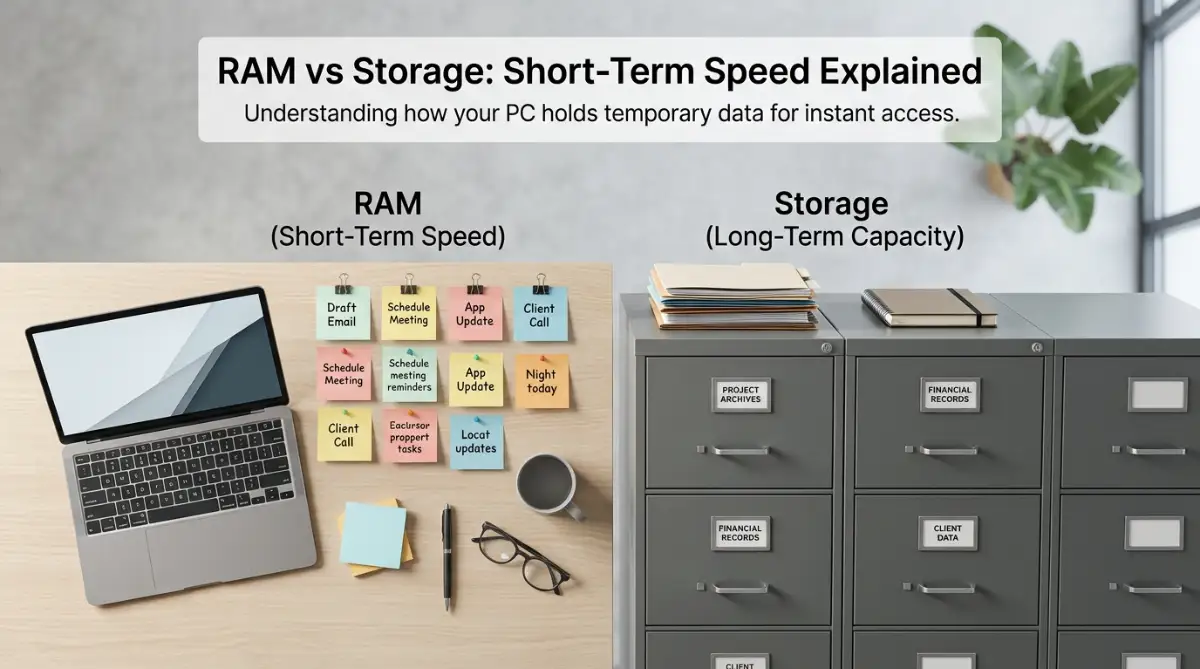
- The Desk Analogy: RAM is your desk surface; your hard drive is the filing cabinet. A bigger desk means you can work on more things at once without things falling over.
- The 16GB Sweet Spot: 8GB is barely holding on for office work today. For 90% of people, 16GB is the perfect balance for speed, heavy browsing, and everyday multitasking.
- Dual-Channel Matters: Two 8GB sticks running together will always run faster and smoother than one single 16GB stick.
- Skip the "RAM Boosters": Downloadable memory cleaner apps do not work—they actually make your PC run slower.
What Random Access Memory Actually Does Inside Your Computer
Think of your computer as a physical office desk where you sit down to do daily work. The main storage drive, whether it is a traditional hard drive or a modern solid-state drive, acts like a large filing cabinet in the corner of your room.
That filing cabinet can hold thousands of documents, photos, and applications safely for years. However, walking over to the cabinet every single time you need a sheet of paper takes time and slows down your pace.
Random access memory works exactly like the physical surface of your office desk. When you open a program, your computer grabs that file from the deep storage cabinet and places it directly onto your desk.
Having items right on your desk allows you to reach them instantly without waiting. The bigger your desk surface is, the more papers, folders, and tools you can keep open at the exact same time.
If your desk is tiny, it quickly becomes covered in paperwork, forcing you to constantly stack sheets or put things back into the cabinet just to make room. That constant shuffling back and forth is what causes your computer to stutter, lag, and freeze up.
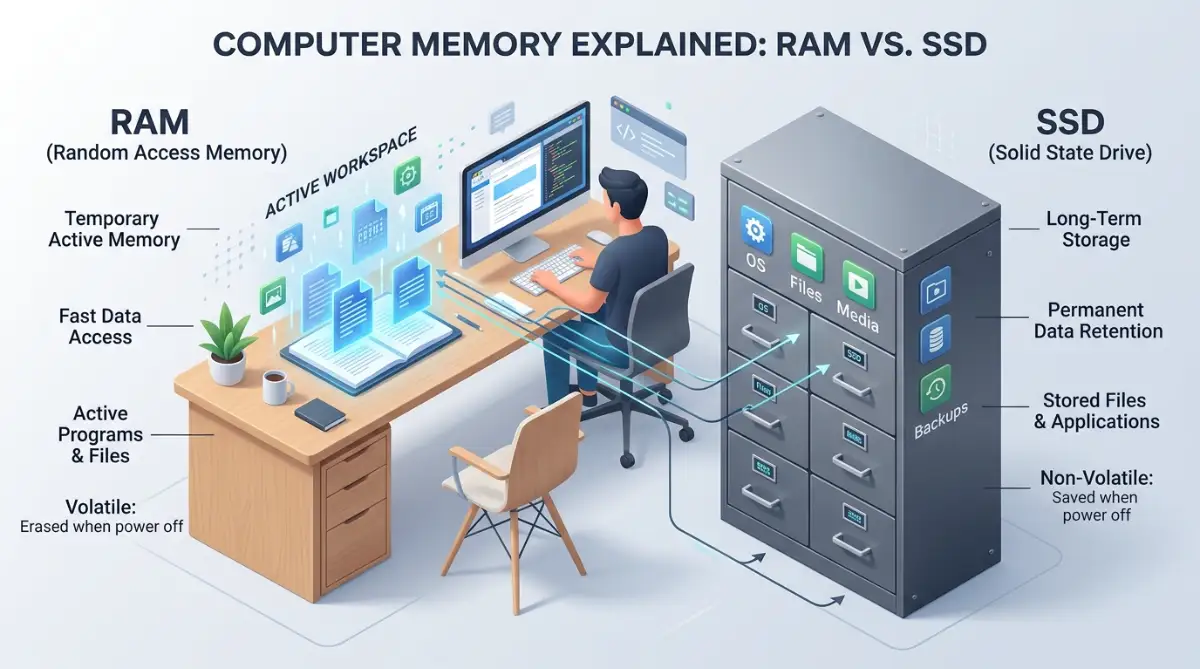
Unlike long-term storage drives, system memory is temporary. Everything sitting on your desk gets swept away completely clean the moment you shut down your computer or turn off the power.
This key difference explains why saving a file writes data safely to your storage drive, while simply opening a file loads it straight into temporary working memory. If you are handling critical personal projects or massive data backups, knowing how to save computer files to external drives fast is an essential skill to keep your hard work secure. Understanding this simple concept helps you make far smarter decisions when shopping for your next computer or planning a hardware upgrade.
Warning Signs That Your System Needs More Memory
When your computer starts struggling for available memory, it gives clear warning signals long before it completely crashes. Paying attention to these early symptoms can save you hours of wasted time and frustration.
One of the most noticeable red flags is severe delay while switching between open software windows. If clicking on a browser tab takes several seconds to respond, your operating system is likely running out of physical memory space.
Another major sign is audio stuttering or frozen video playback while attempting to multitask. When you stream music or videos in the background while typing a document, the audio should remain perfectly smooth without cracking or stopping.
- Unresponsive Typing: Text appears on screen seconds after you finish pressing the keys on your keyboard.
- Frequent App Crashes: Web browsers or photo editors suddenly close on their own without displaying clear error messages.
- Excessive Drive Noise: Desktop computers with mechanical drives make continuous clicking sounds as the system attempts to use drive space as fake memory.
- System Notifications: Low memory warning pop-ups appear across your screen during normal application use.
If you regularly notice two or more of these frustrating problems during your standard daily routine, your system is telling you clearly that it needs additional memory capacity.
How Much Memory Does Your Computer Really Need?
Choosing the ideal amount of memory depends entirely on what you plan to do with your computer every day. Buying too little memory causes constant lag, while paying for way too much memory simply wastes your hard-earned money.
| RAM Capacity | Best Target Audience | Common Daily Tasks |
| :--- | :--- | :--- |
| **4 Gigabytes** | Basic / Entry Users | Email, web browsing, single document |
| **8 Gigabytes** | Standard Office & Students | Multitasking, streaming, light photos |
| **16 Gigabytes** | Most Gamers & Power Users | Modern gaming, heavy tabs, video work |
| **32 Gigabytes** | Professionals & Creators | 4K video editing, 3D work, virtual VMs |
| **64GB or More** | Specialized Workstations | Heavy rendering, massive datasets |
Entry Level Capacity: 4 Gigabytes
A capacity of four gigabytes represents the absolute bare minimum for modern operating systems today. While it can handle simple tasks, it leaves almost no breathing room for modern web applications.
This level of capacity works okay if you only check basic emails, view single web pages, or write plain text documents one at a time. However, opening more than five or six browser tabs simultaneously will quickly consume all available room.
I generally do not recommend buying a new laptop or desktop with only four gigabytes of memory today. Modern web pages are far heavier than they used to be, and basic operating system tasks will use up most of this space immediately.
Standard Everyday Capacity: 8 Gigabytes
For the majority of everyday users, eight gigabytes serves as a solid baseline for smooth basic computing. It allows you to browse the web comfortably with multiple open tabs while listening to music streaming services.
Students and office workers who handle spreadsheets, slide presentations, and online video calls will find eight gigabytes quite adequate. You can easily switch between software applications without suffering from immediate system lockups.
However, if you enjoy playing modern computer games or like keeping dozens of heavy web browser tabs open all day long, eight gigabytes may start feeling restrictive fairly quickly.
The Sweet Spot for Most People: 16 Gigabytes
Sixteen gigabytes is widely considered the ideal sweet spot for modern computer users. It offers plenty of headroom for heavy web browsing, demanding office tasks, and modern high-definition computer gaming.
With sixteen gigabytes available, you rarely have to worry about closing background apps just to launch a new program. You can stream high-definition videos, keep endless browser tabs active, and edit large digital photos without any noticeable slowdown.
If you are buying a new computer or planning a simple hardware upgrade to last for several years without headaches, aiming for sixteen gigabytes provides outstanding value and peace of mind.
High Performance and Content Creation: 32 Gigabytes
Thirty-two gigabytes enters the territory designed for serious enthusiasts, creative professionals, and heavy software developers. If your daily work involves editing high-resolution video footage or working with heavy graphic design files, this capacity is ideal.
Modern games featuring massive detailed worlds also benefit greatly from thirty-two gigabytes, eliminating minor screen stutters during intense action scenes. It allows your graphics software to hold complex assets directly inside quick-access memory.
While average users might not utilize all this space immediately, having thirty-two gigabytes ensures your setup remains fast, responsive, and completely future-proof for years to come.
Professional Workstation Power: 64 Gigabytes and Beyond
Capacities of sixty-four gigabytes or higher are tailored strictly for high-end professional workstations and heavy server environments. Average consumers and standard gamers almost never require this tremendous amount of memory space.
Professionals who render complex 3D visual effects, work with massive architectural blueprints, or run multiple virtual machines simultaneously rely on these massive capacities. It prevents costly render crashes and keeps massive dataset projects running smoothly.
Unless you earn your living through heavy technical work or demanding media production, investing money into sixty-four gigabytes is generally unnecessary for everyday home setups.
📊 Real-World App Memory Usage Breakdown (Tested in 2026)
To see where your memory actually goes, here is a breakdown of what common everyday apps consume during real daily use:
Beyond Size: Speed, Generations, and Memory Channels
While total storage size gets most of the attention, memory speed and generation type also play major roles in overall system performance. Understanding these details ensures your memory hardware works seamlessly with your computer processor.
Memory Generations: DDR4 vs DDR5
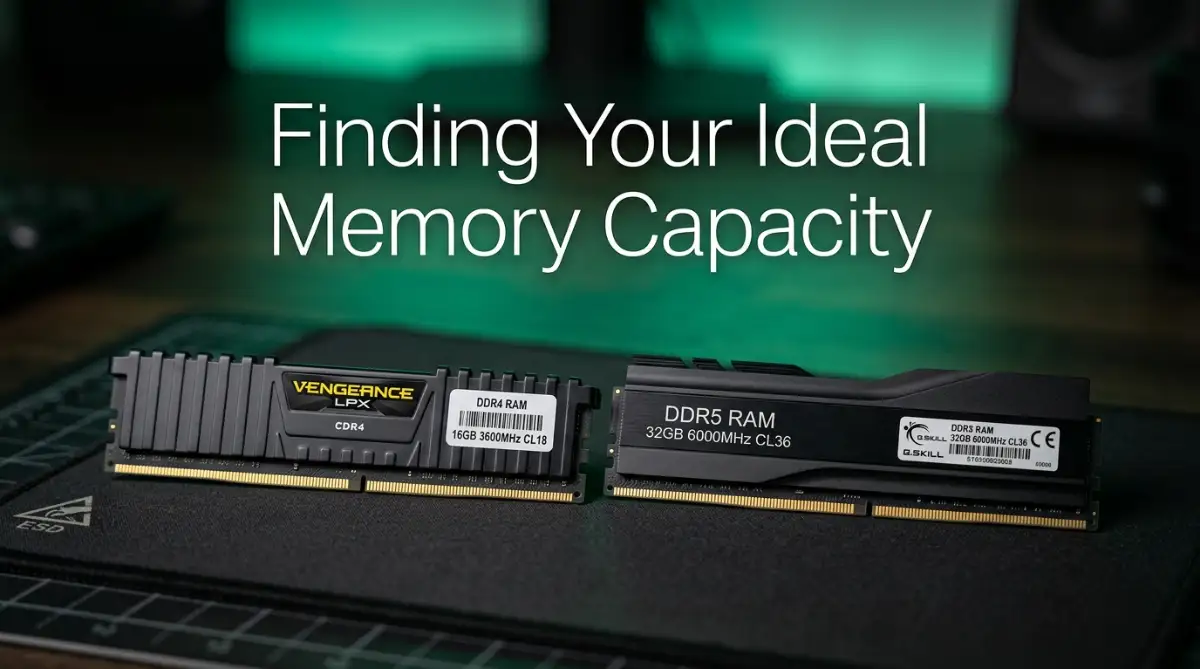
System memory comes in generational standards, with DDR4 and DDR5 being the primary types used in computers today. DDR5 represents the newest technology, offering faster data transfer speeds and better power efficiency compared to older DDR4 modules.
However, motherboard slots are physically different for each generation, meaning DDR4 modules cannot fit into DDR5 memory slots. Always double-check your motherboard specifications before purchasing new memory hardware to ensure complete compatibility.
Understanding Clock Speeds and Latency
Memory speed is measured in megahertz, indicating how many cycles of data transfer the memory stick can complete in a single second. Higher numbers generally mean faster response times and snappier overall application launching.
Latency measures the slight delay between when a memory command is sent and when it is executed. While high speeds and low latencies are great for high-end gaming, standard daily computer tasks rarely show dramatic differences from tiny speed bumps.
Single-Channel vs Dual-Channel Setup
Think of memory channels like supermarket checkout lanes. If you only put one stick of RAM in your machine, all your computer's data has to squeeze through a single register. By installing two identical sticks, you open a second checkout lane—doubling the data flow between your memory and your processor. I ran my personal PC on a single stick for over a year by mistake. The day I popped in a matching second stick, my video editing export times dropped and my games stopped stuttering completely.
For example, using two eight-gigabyte memory sticks usually delivers noticeably better performance than using a single sixteen-gigabyte stick. This simple trick allows your processor to pull data from two sources simultaneously, improving graphics performance significantly.
Discover How to Check Your Current Memory Usage
Before spending money on extra hardware, it is wise to see exactly how much memory your system is currently using during your average daily routine. Both major operating systems offer built-in tools to check this in seconds.
Check out this quick video demonstration to see how simple it is to monitor your system hardware performance and identify memory bottlenecks in real time.
Checking System Memory on Windows
- Press the key combination Control + Shift + Escape together on your keyboard to open the System Task Manager.
- Click on the Performance tab located on the left menu rail.
- Select Memory from the list to view a live graph showing your total installed memory, current usage percentage, and speed.
If your usage graph stays constantly above eighty percent while doing basic tasks, your system is crying out for an immediate memory upgrade.
Checking System Memory on Apple macOS
- Press Command + Spacebar to open the Spotlight Search bar.
- Type Activity Monitor and press the Enter key to launch the application.
- Click on the Memory tab found at the top of the window interface.
Look at the Memory Pressure chart at the bottom of your screen. If the graph shows bright green, your memory status is healthy; if it turns yellow or red, your Mac needs more memory space to handle your workload smoothly.
Common Myths About Computer Memory Explained
There are numerous widespread misconceptions floating around the internet about how computer memory functions. Clearing up these misunderstandings will help you keep your computer running efficiently without taking unnecessary measures.
Myth: Unused Memory Is Wasted Memory
Many users get nervous when they see their operating system using sixty or seventy percent of available memory while sitting idle. In reality, modern operating systems are designed to intelligently cache frequently used software files in spare memory space for faster access.
If a heavy application requires that space later, the system instantly frees it up automatically. Empty, completely idle memory serves no real purpose, so letting your computer utilize extra space for quick file caching is actually a good sign.
Myth: RAM Cleaners and Boosters Speed Up Your PC
Third-party software utilities promising to instantly free up memory or boost computer speeds often do far more harm than good. These tools force necessary temporary files out of fast system memory back into slow storage drives.
This causes your computer to work twice as hard to reload those basic files moments later, leading to more lag rather than less. Modern operating systems manage temporary memory far better than any downloadable utility software ever could.
Myth: You Can Mix Any Memory Brands and Sizes Freely
While mixing different memory stick sizes or brands might physically fit into your motherboard slots, doing so can cause system instability or force all sticks to run at the slowest available speed.
For optimal performance and reliable stability, always try to install identical memory sticks that share matching capacities, clock speeds, and manufacturer specifications whenever possible.
🔍 Quick Truth Check: RAM Myths Busted
- ❌ Myth: "Adding more RAM will instantly double my PC speed."
- ✔️ Fact: RAM does not make a fast computer faster; it stops a busy computer from slowing down. If your workload only uses 10GB, jumping from 16GB to 64GB will not give you any extra speed.
- ❌ Myth: "RAM speed (MHz) is all that matters."
- ✔️ Fact: Capacity comes first, latency (CL timing) comes second, and clock speed (MHz) comes third. Having enough capacity to avoid drive caching beats raw clock speed every single time.
Practical Tips for Getting the Most Out of Your Current Setup
If upgrading your hardware is not an option right now due to budget constraints, you can take practical steps today to optimize your current memory usage without spending a single dollar.
- Close Unnecessary Browser Tabs: Every active web browser tab consumes memory; bookmark pages you do not need open right away.
- Disable Unneeded Startup Programs: Prevent background utilities from launching automatically every time you turn on your computer.
- Use Lightweight Web Browsers: Select streamlined web browser applications or turn on built-in efficiency modes that put idle tabs to sleep.
- Restart Your Computer Regularly: Shutting down your PC periodically clears out temporary memory clutter and stuck background processes cleanly.
Taking small proactive steps to manage your active applications keeps your computer feeling responsive and reliable, allowing you to work peacefully without unexpected system freezes. Choosing the right memory capacity gives your system the exact breathing room it needs to perform at its absolute best every single day.
Pro-Level Strategies for Maximizing Your Computer Memory Performance
Getting the best speed from your system memory involves far more than simply plugging physical hardware modules into your motherboard slots. Hardware enthusiasts and experienced technicians use specific tuning tricks to extract every drop of available speed from their system.
| Tuning Method | Primary Benefit | Difficulty Level |
| :--- | :--- | :--- |
| **XMP / EXPO Profiles** | Unlocks Advertised Speed Ratings | Beginners (One-Click BIOS Setting) |
| **Custom Virtual Memory** | Prevents Sudden Application Crashes | Intermediate (Windows Settings Menu) |
| **Alternating Dual Slots** | Doubles Memory Communication Band | Beginner (Physical Hardware Placement) |
| **Airflow Optimization** | Prevents Thermal Speed Throttling | Beginner (Regular Hardware Cleaning) |
Unlocking Factory Speed Ratings Through XMP and EXPO
When you buy high-performance memory sticks rated at fast speeds, your computer motherboard usually defaults to running them at baseline speeds out of the box. This built-in safety feature ensures your system boots up successfully on the very first try.
To run your memory hardware at its full advertised potential, you need to enter your computer BIOS setup during boot. Look for an option named Extreme Memory Profile on Intel systems or EXPO on AMD platforms.
Enabling this single setting applies pre-tested factory settings that automatically adjust your system voltage, memory frequencies, and response timing delays.
If you want to understand the exact science behind how these profiles push your hardware boundaries safely, I recommend checking out the official Kingston FURY Overclocking Education Guide. It breaks down JEDEC standards, voltage limits, and safety measures in a way that is incredibly easy to digest, even if you are not a seasoned tech enthusiast.
Fine-Tuning Virtual Memory and Page file Allocations
When your RAM gets completely packed, Windows uses a small trick called a "page file." It borrows a slice of your SSD or hard drive to act as backup emergency memory so your programs do not instantly crash. While this saves you from losing work, hard drive storage is much slower than real RAM. If you are on Windows, setting your virtual memory size manually to 1.5 times your physical RAM keeps your system stable during heavy sessions without random app shutdowns.
Leaving virtual memory settings on dynamic automatic mode can sometimes create heavy storage fragmentation on older drives. Manually setting a fixed custom minimum and maximum size for your virtual memory prevents your system from constantly resizing this file during intense workloads.
Maintaining Proper Hardware Temperatures and Clean Airflow
Memory modules generate noticeable heat when pushed through intense gaming, rendering tasks, or heavy file compressions. When heat builds up inside a tight laptop chassis or cramped desktop case, your memory sticks automatically slow down to protect internal chips from permanent thermal damage.
Ensuring proper ventilation throughout your computer chassis keeps high-speed memory operating at maximum stability. Dust accumulation on hardware surfaces acts as a thick thermal insulator that traps ambient heat right against sensitive silicon components.
To safely clean out your system without causing any physical damage to internal circuits, you can read our practical guide on simple home methods to remove laptop dust and boost speed. Keeping your physical airways clear of debris allows your fans to work efficiently, ensuring your memory hardware stays cool and performs reliably even under the heaviest workloads.
Optimizing Background Software Processes and Startup Programs
Having plenty of installed memory will not help your computer run fast if dozens of hidden software background tasks eat up your resources continuously. Software developers often design utility applications to launch automatically every time your operating system starts up.
Take time once a month to audit your system startup menu and disable applications you do not use every day. Chat programs, game launchers, and cloud storage utilities can easily consume gigabytes of valuable memory while sitting completely idle in your system tray.
When you are managing a demanding daily digital workflow, every single megabyte of memory counts. By keeping your system's background processes clean and closing down resource-heavy startup apps, we can ensure that our active projects always get priority access to physical RAM. This simple habit alone will make your entire system feel snappier and save you from frustrating mid-work slowdowns.
Hidden Errors That Waste Your Money and Slow Down Your PC
Upgrading or installing new system memory seems simple, but minor mistakes can severely limit your performance or damage sensitive hardware components. Avoiding these common mistakes will save you from spending unnecessary money on hardware you cannot fully utilize.
| Common Hardware Mistake | System Performance Impact | Easy Preventive Solution |
| :--- | :--- | :--- |
| **Single-Channel Placement** | Halves Data Transfer Bandwidth | Use Alternating Motherboard Slots |
| **Mixing Incompatible Speeds** | Forces All Memory to Slowest Speed | Match Speed and Latency Ratings |
| **Ignoring OS Architecture Limits** | System Cannot Recognize Extra Space | Upgrade to 64-Bit Operating System |
| **Disregarding Electrostatic Safety** | Permanent Component Circuit Damage | Use Anti-Static Safety Protocols |
Installing Memory Modules in the Wrong Motherboard Slots
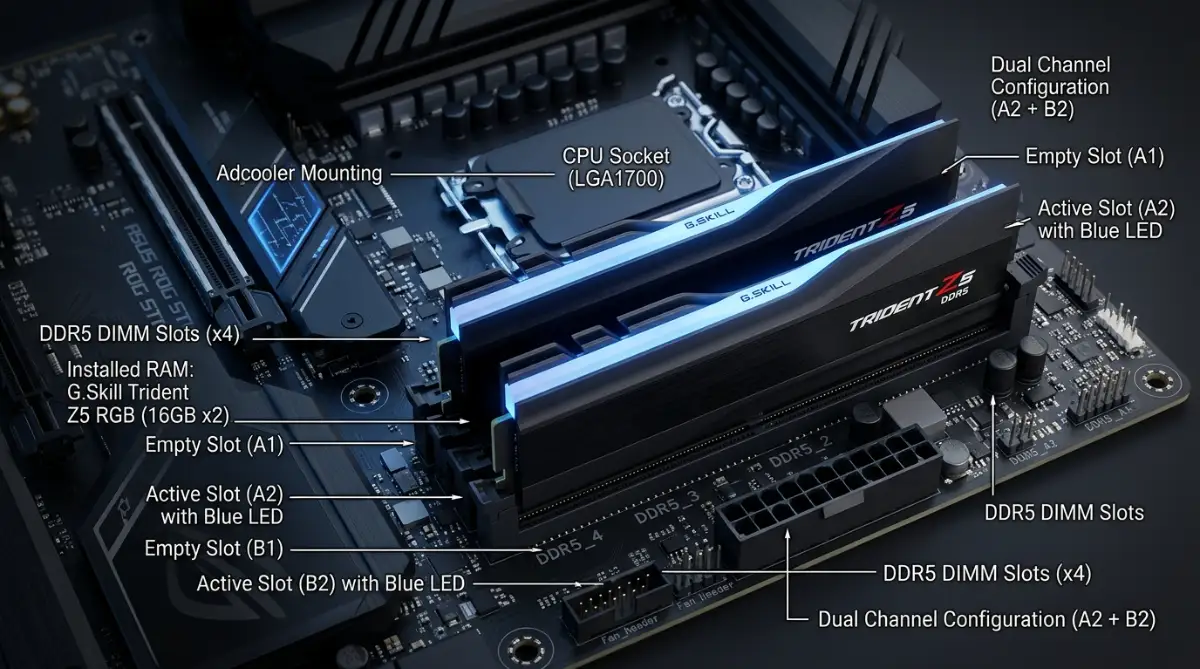
Most desktop motherboards feature four physical memory slots color-coded in alternating patterns. A surprising number of first-time computer builders make the mistake of installing two memory sticks directly side-by-side in adjacent slots.
Placing memory modules side-by-side forces your system to run in single-channel mode, cutting your memory communication bandwidth in half instantly. To enable dual-channel performance, you must install memory sticks in alternating slots, typically labeled slots two and four by system manufacturers.
Always consult your motherboard instruction manual before pushing hardware into place.
For a deeper dive into how our operating systems recognize upgraded hardware and manage memory layouts, you can explore the official Microsoft Support All About Computer Memory Guide. This resource provides excellent troubleshooting steps directly from the Windows team to ensure your new memory is fully optimized.
Mixing Different Memory Brands, Speeds, and Latencies
Buying random memory sticks on sale and plugging them alongside your existing memory hardware is a recipe for system headaches. When you mix different speeds or timing delays, your motherboard automatically forces all memory modules to run at the speed of the slowest installed stick.
In worse scenarios, mismatched voltage requirements between different brands can cause frequent system crashes, random blue screens, or boot failure. If you need to expand your memory capacity, try to purchase a matching kit produced by the exact same manufacturer.
Purchasing More Memory Than Your Operating System Can Handle
Installing extra hardware will not help your computer if your operating system cannot actually address the additional space. Older 32-bit operating systems feature an architectural limit that caps maximum recognized memory at roughly four gigabytes total.
If you install sixteen gigabytes into a 32-bit operating system, the system will completely ignore twelve gigabytes of your hardware. Always verify that your machine is running a modern 64-bit operating system before purchasing large hardware upgrades.
Neglecting Electrostatic Discharge Precautions During Hardware Handling
Before you open your PC case and touch any memory sticks, you need to ground yourself. Walking across a carpet can build up static electricity in your fingers. If you touch bare silicon chips while charged, you can fry sensitive parts in a fraction of a second without even seeing a spark. Simply touch an unpainted metal part of your plugged-in computer case (or a metal desk leg) before handling your hardware, and always work on a bare floor.
Taking a few extra seconds to follow these basic physical safety precautions protects your financial investment. By shielding your delicate components from static charges, we can keep our systems highly stable, functional, and ready to tackle workloads reliably for years to come.
Frequently Asked Questions About Computer Memory
1. Is 8GB of RAM enough for everyday office work today?
Yes, but barely. 8GB is sufficient for basic web browsing, word documents, and video meetings. However, if you keep 20+ browser tabs open alongside Spotify and Excel, your system will start relying on slower virtual memory. 16GB is the safer pick.
2. Can I mix an 8GB stick with a 16GB stick?
Yes, your PC will boot, but it is not ideal. Your motherboard will run the first 8GB of both sticks in dual-channel mode, and the remaining 8GB from the larger stick in slower single-channel mode (called Flex Mode). Always buy matching pairs when possible.
3. Will faster RAM give me higher FPS in games?
It helps stabilize your frame rates rather than skyrocketing your top FPS. Faster RAM with lower latency reduces 1% low frame drops, meaning you get far fewer sudden stutters during fast-paced action scenes.
4. What is the difference between RAM and storage?
RAM is short-term workspace that erases every time you turn off your PC. Storage (SSD or HDD) is your permanent filing cabinet where files, photos, and games stay saved forever.
5. Why is my PC using 50% RAM when I have no apps open?
Windows caches recently closed programs and system services in empty memory so they reopen instantly. This is completely normal and healthy behavior—your system will immediately free this space the moment an active app needs it.
Your Clear Roadmap to a Blazing Fast System
Taking control of your computer performance does not require a degree in computer engineering or thousands of dollars in new electronics. Understanding how temporary working space impacts daily system responsiveness empowers you to make smart, cost-effective decisions.
| Action Step | Recommended Timeframe |
| :--- | :--- |
| **Check Current RAM Usage** | Today (Open Task Manager or Activity Monitor) |
| **Audit Startup Apps** | Weekly (Disable Heavy Background Software) |
| **Enable XMP/EXPO Settings** | Once (Inside System BIOS Settings) |
| **Clean Internal Dust** | Every 3 to 6 Months (Keeps Hardware Cool) |
Action Plan Checklist for Computer Optimization
To ensure your desktop or laptop delivers top-tier performance every single day, follow this simple practical checklist:
- Assess Your Real Workload: Determine whether your daily routine involves simple web browsing or heavy creative production tasks.
- Verify System Requirements: Match your current memory usage against standard recommended capacity targets before spending money.
- Check Motherboard Compatibility: Confirm whether your setup requires DDR4 or DDR5 hardware generation standards.
- Enable Dual-Channel Memory: Install matching memory sticks in alternating motherboard slots for maximum bandwidth efficiency.
- Keep Background Utilities Lean: Remove unwanted auto-start programs to preserve maximum working memory space for important applications.
I encourage you to open your system monitor today and see exactly how your computer memory is performing under your daily workload. Taking small action steps right now will eliminate frustrating system freezes and give you back precious hours of smooth, stress-free computing!
When our technology works smoothly in the background, our mental load drops instantly, allowing us to focus entirely on our goals. Giving your computer the right amount of breathing room is one of the easiest ways to bring peace, productivity, and speed back to your daily digital life!
Disclaimer:
The information provided in this article is for educational and informational purposes only. Hardware specifications, memory requirements, and performance results may vary depending on individual system configurations, operating systems, and specific software demands. Always consult your computer manufacturer documentation before purchasing hardware components or attempting physical installations.