My Phone Died at 32% on a Dark Street (And How I Fixed It for Free)
Last winter, I was standing outside in the freezing rain trying to book a cab home. I looked down at my screen: 32% battery remaining. Plenty of juice, right? Then, click. The screen went pitch black. When I pressed the power button, all I got was that annoying blinking red battery icon. I had no cash, no paper map, and zero ways to call anyone.
At first, I thought my battery was totally fried and I was ready to drop $80 on a replacement. But after doing some digging and testing it on my workbench, I found out the hardware was completely fine. My phone wasn't broken—its internal fuel meter was just confused. If your phone randomly shuts down at 20%, 30%, or drops 10% in two seconds, don't buy a new battery just yet. Let me show you how to reset that battery gauge at home in just a few simple steps.
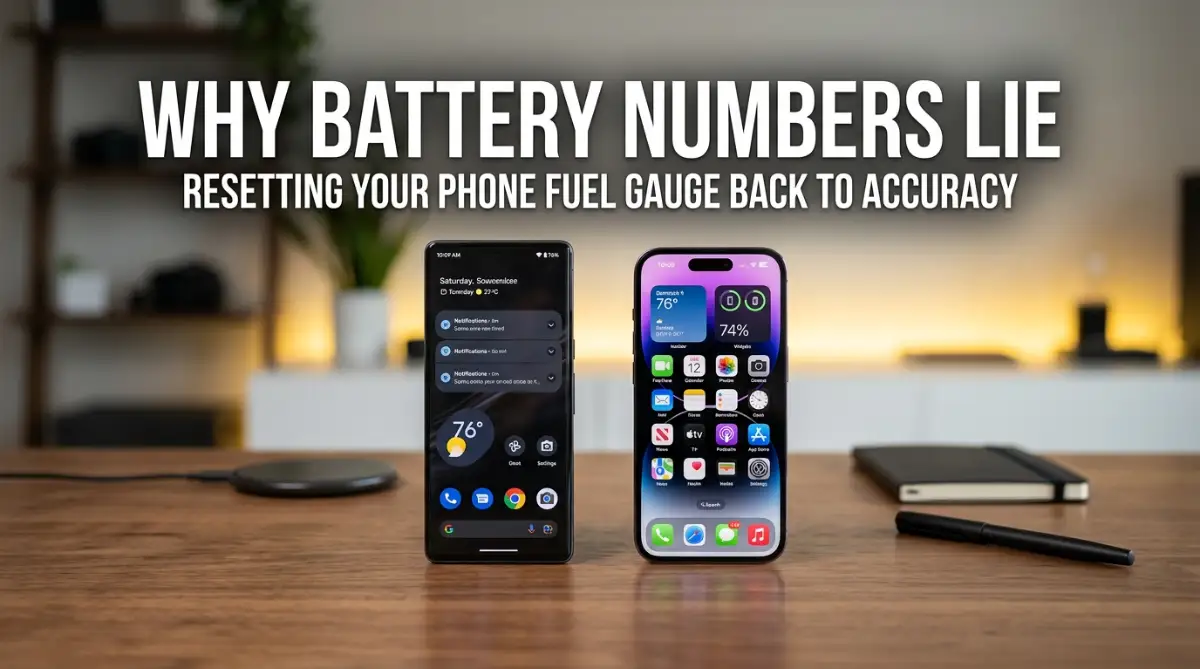
⚡ Quick Summary: What You Need to Know in 30 Seconds
- The Real Problem: Your battery isn’t losing power suddenly; the software chip (BMS) just lost track of where true 0% and 100% are.
- The Fix: A full drain down to auto-shutdown followed by an uninterrupted 100% charge (plus 1 extra hour on the plug) resets the meter.
- When NOT to Calibrate: If your phone's back glass is lifting, the battery feels hot to touch, or Maximum Capacity is under 80%, you need a new physical battery, not calibration.
- Safety Rule: Never use freezer tricks or weird third-party calibration apps from app stores—they are useless and risky.
Why Your Phone Battery Percentage Becomes Inaccurate over Time
The Hidden Role of the Battery Management System
Every modern smartphone relies on a small built-in chip called the Battery Management System. This smart chip acts like a digital fuel gauge that monitors how much power flows in and out of your device.
The chip does not actually count individual electric drops inside the cell. Instead, it estimates your remaining charge based on voltage levels and historical usage patterns.
Over months of heavy use, this system can lose track of where the real top and bottom limits of your battery are. When that happens, your screen displays a wrong number that does not match the actual chemical charge inside.
Micro-Charging and Short Charging Cycles
Most people plug their phones in for short bursts throughout the day. You might charge your device from 40 percent to 70 percent while driving to work, then top it up at your desk later.
While this habit is actually good for physical battery chemistry, it confuses the tracking software over time. The monitoring chip rarely gets to see what a true full charge or true empty state looks like.
Without seeing those extreme ends, the software starts guessing your charge levels. These small daily errors add up until your percentage counter jumps randomly up or down.
Operating Temperature Extremes
Exposing your phone to high heat or extreme cold distorts battery voltage instantly. Leaving your device on a sunny car dashboard causes chemical reactions to speed up unexpectedly.
Cold weather makes battery voltage drop sharply, tricking your phone into thinking it has zero power left. When you bring the device back into a warm room, the percentage suddenly jumps back up.
These temperature swings confuse the internal fuel gauge algorithms even further. Frequent temperature changes make calibration errors happen much faster than usual.
Comparison: Myth vs Reality of Smartphone Battery Calibration
The Step-by-Step Manual Calibration Method for Android and iPhone
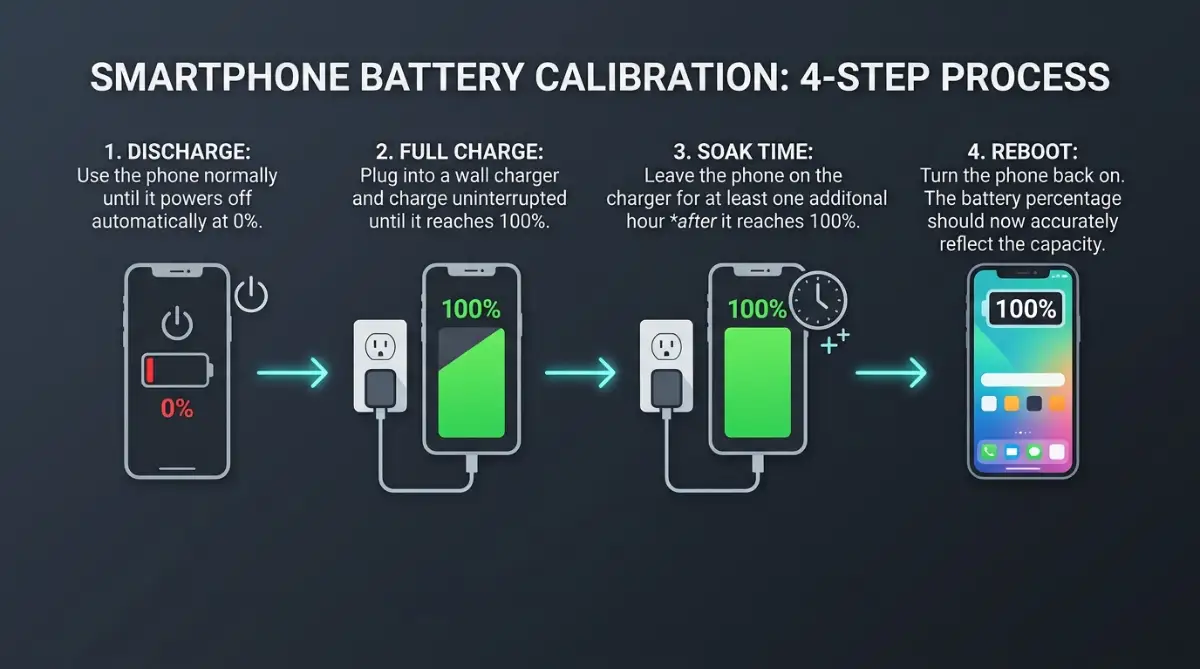
Fully Drain Your Smartphone Battery
Start by using your phone normally until the battery level drops down near zero. Play online videos, crank up your brightness (since different smartphone display types like LCD and OLED consume heavy power at max levels), or turn on location features to speed up the process naturally.
Keep using your device until it turns off completely by itself. Do not force it back on immediately; let the phone sit powered off for about ten minutes to let internal temperatures cool down.
Try turning the phone back on one more time to make sure any leftover power drains out completely. Once it shuts off immediately again, you are ready for the next step.
Charge Without Interruption to Full Capacity
Plug your powered-off smartphone into a reliable wall charger using its original cable. Avoid charging through computer USB ports because they supply lower and less stable power levels.
Leave the phone powered off while it charges all the way to 100 percent. Do not unplug the cable or turn the phone on to check messages during this critical phase.
Allow the device to stay connected to the charger for at least one extra hour after it reaches 100 percent. This extra time allows the management system to equalize the charge cells completely.
Perform a System Reset While Plugged In
With the charging cable still connected, turn your phone back on. Wait for your home screen to load up fully and let all background sync processes settle down.
Check the battery icon at the top corner of your screen to ensure it reads 100 percent. If it shows anything less than 100 percent, leave it plugged in until it reaches full capacity.
Once it hits full charge while turned on, restart your device using the normal power menu options. This restart forces the operating system to save the new maximum battery parameter into its system memory.
Discharge the Battery One Last Time
Unplug your charging cable and use your smartphone normally throughout your day. Pay attention to how the percentage numbers count down as you use different applications.
You should notice a smooth, steady decrease in numbers rather than sudden 10 percent drops. Allow the battery to drain down to zero until the device shuts off by itself once more.
This full discharge helps the internal sensor confirm where the bottom empty threshold rests. It locks in the lower limit of your battery tracking range accurately.
The Final Full Charge Cycle
Plug your empty phone back into your wall charger and let it charge straight up to 100 percent without stopping. You can leave the phone turned on during this final charging step.
Once the display shows a complete full charge, your battery tracking software is officially recalibrated. Your screen percentage will now match the true energy stored inside your battery cells.
You do not need to repeat this deep cycle again anytime soon under normal working conditions.
💡Author’s Hard-Earned Lesson: Avoid the "Patience Trap"
When I first tried recalibrating my smartphone, I made a rookie mistake: I kept unplugging the cable every 20 minutes just to check my messages and battery logs! That tiny interruption restarted the charging curve and ruined my first two calibration attempts. My golden rule for you: Once you plug your powered-off phone into the wall, let it sit completely untouched. Giving your Battery Management System uninterrupted time to equalize cells makes all the difference between a failed attempt and a pinpoint-accurate battery gauge!
📺 Quick Video Walkthrough: Smartphone Battery Calibration
Watch this visual demonstration explaining how the internal fuel gauge recalculates low and high voltage thresholds during a deep charge cycle.
Advanced Troubleshooting When Calibration Does Not Fix the Issue
Checking Battery Health Metrics on iOS and Android
If your battery percentage still jumps around after calibration, your physical battery might be degraded. On Apple devices, open your main Settings app, select the Battery section, and tap on Battery Health.
Look closely at the Maximum Capacity percentage listed on that screen. If that number falls below 80 percent, your battery hardware has worn out and needs professional replacement.
Quick Diagnostic: Software Glitch vs Bad Hardware
Before spending money on repair shops, use this simple checklist to find out what is really going on with your device:
Identifying Physical Battery Damage and Swelling
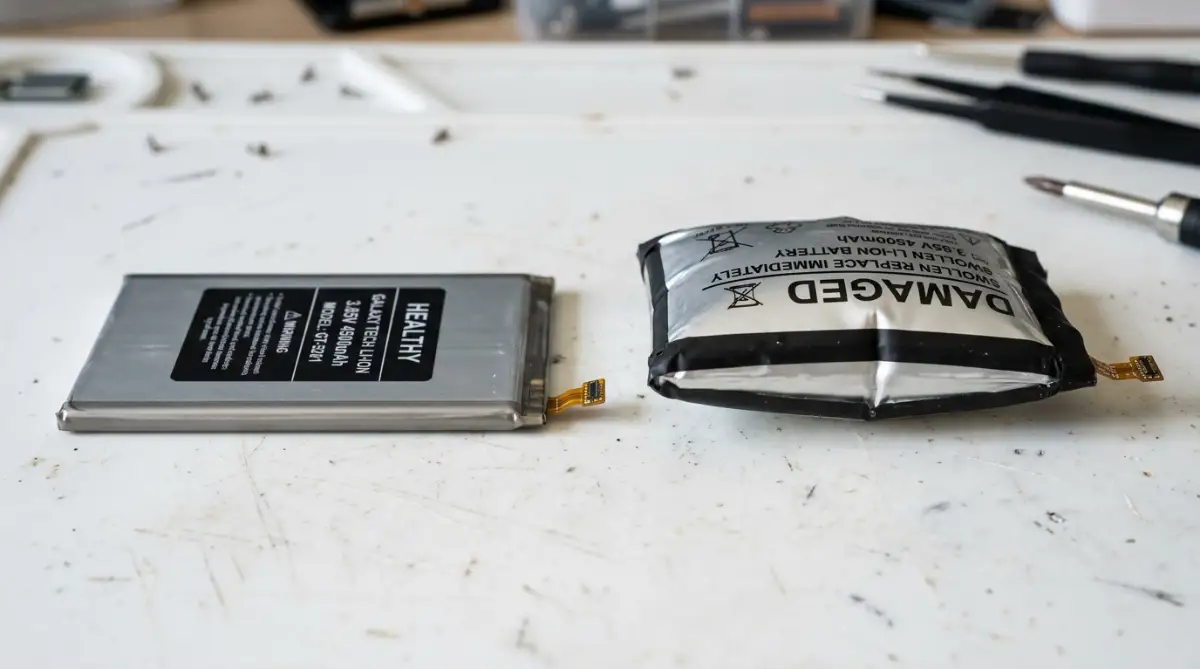
Inspect your phone carefully from the sides to see if the back glass or screen is lifting away from the frame. A battery that swells creates internal pressure that pushes components apart.
Run your thumb gently over the back of your phone to feel for strange bumps or uneven surfaces. Swollen batteries occur when internal gases build up due to overheating or age.
Never attempt to calibrate or charge a battery that shows physical swelling or excessive heat. Take the device to a qualified service center right away for safe disposal and repair.
Clear Out Corrupted System Logs (Android Only)
Sometimes your phone hardware is 100% fine, but an old software update left behind messy battery log files. Clearing your Android recovery cache wipes out those corrupt logs without deleting your photos, contacts, or apps:
- Power off your phone completely.
- Press and hold the Power Button + Volume Up until the Android logo pops up.
- Use the volume buttons to scroll down to Wipe Cache Partition.
- Press the power button to confirm, then select Reboot System Now.
Daily Habits to Maintain Accurate Battery Percentage Readings
Avoid Extreme Temperature Exposure
Never leave your phone inside a parked car during warm sunny days. Direct sunlight on your display causes internal heat levels to spike rapidly, damaging battery health.
Keep your phone in an inside pocket during freezing winter weather to keep it warm. Protecting your phone from extreme climate conditions keeps voltage levels stable and predictable.
If your phone feels hot while gaming or charging, remove its protective case temporarily. Allowing heat to escape prevents thermal throttling and keeps your power meter accurate.
Perform a Full Charge Cycle Once Every Few Months
You do not need to drain your battery to zero every single day. Modern lithium batteries perform best when kept between 20 percent and 80 percent charge during normal daily use.
However, letting your battery drop to zero and charging it to full once every three months is beneficial. This rare full cycle keeps the battery management software aligned with physical reality.
Use High-Quality Chargers and Cables
Inexpensive, uncertified charging cables often deliver erratic electric currents to your smartphone. Fluctuating voltage confuses sensitive monitoring chips inside your device during charging sessions.
Always use original equipment chargers or certified brand accessories that match your phone requirements. Quality accessories deliver smooth power delivery that keeps your battery healthy for years.
Avoid using loose wall outlets or cheap car adapters that flicker on and off while driving. Steady power input ensures accurate charge measurement every single time you plug in.
Understanding Modern Smartphone Battery Science
How Your Battery Actually Talks to Your Screen
Think of your phone's battery like a clear water bottle. When it's brand new, you can easily see when it's half-full or empty. But over time, the battery management chip has to guess the water level just by feeling the pressure on the walls.
Lithium batteries have a very flat voltage line. A battery with 65% power puts out almost the exact same voltage as one with 35% power. If you only charge your phone in quick 15-minute bursts during your daily commute, that tracking chip starts guessing blindly. Eventually, it guesses wrong, tells you that you have 30% left, and then suddenly cuts out when the actual power hits rock bottom.
Why Software Gets Disconnected from Hardware
Your operating system relies on smart algorithms to estimate how many active ions remain available. The software looks at voltage readings to guess if you have 50 percent or 20 percent power left.
When to Seek Professional Battery Replacement
Signs Your Battery Has Reached the End of Its Life
Software calibration fixes reading errors, but it cannot repair physically degraded internal components. If your phone drains from 100 percent to zero in just two hours, your cell is worn out.
If your phone turns off instantly when you open the camera app, the battery can no longer deliver peak power. High-drain features pull more current than an aged battery can safely supply.
Replacing an old battery restores your phone to its original speed and day-long performance. It is much cheaper than upgrading to a new iPhone, Samsung, or Pixel flagship when your current device works fine otherwise.
Choosing Authorized Repair Services
Always choose official service centers or certified repair technicians when replacing your smartphone battery. Cheap counterfeit batteries lack proper safety protection circuits and degrade within weeks.
Quality replacement batteries come with manufacturer warranties and proper thermal protection built in. Certified technicians also reseal your phone frame to maintain water resistance features.
Proper installation ensures your phone battery management system recognizes the new hardware instantly. A fresh, genuine battery gives your phone a complete second life without annoying percentage jumps.
Deep Battery Maintenance: Advanced Strategies to Keep Your Gauge Accurate
Optimizing Charge Limits and Managing Chemical Stress
Maintaining precise percentage readings requires keeping your battery cells in a healthy physical state. Modern lithium cells experience the highest amount of chemical tension when held at 100 percent charge or allowed to drop down to zero percent. To minimize this wear, we always recommend keeping daily charge levels between 20 percent and 80 percent. You can dive into the comprehensive Battery University Research on Lithium-ion Charging to see empirical data on how partial cycles dramatically preserve voltage precision.
⚙️ Quick Enable: Settings ➔ Battery ➔ Battery Health ➔ Toggle "Optimized Battery Charging" / "Protect Battery" (80% Limit)
Regulating Background App Power Consumption
Unpredictable power spikes from hungry background applications distort how your operating system measures remaining energy. When a rogue background app suddenly pulls massive processor cycles, your battery voltage drops temporarily. The tracking software misinterprets this momentary voltage drop as drained capacity, causing your percentage gauge to plummet. Take control by heading into your device settings and restricting intensive background apps. If you are curious about the mechanics, explore the official Android Open Source Project (AOSP) Power Management Guidelines to see how Android balances app standby and telemetry states.
Controlling Temperature Exposure to Protect Voltage Readings
Temperature changes alter the internal electrical resistance of lithium cells instantly. When your phone gets hot during gaming sessions, internal resistance lowers, which alters current measurement calculations.
Conversely, freezing winter temperatures increase internal resistance, making your battery management system report false low power warnings. Keep your phone in ambient room temperatures whenever possible during regular use.
If you notice your device getting hot while charging, remove heavy silicone protective cases to allow heat to dissipate into the air. Similar to cleaning dust from electronics to improve airflow, keeping phone vents clear keeps battery temperatures stable.
Avoid placing your phone under pillows or soft bedding while charging overnight. Proper ventilation prevents thermal accumulation, allowing your battery gauge to record accurate charge metrics.
Establishing a Quarterly Recalibration Schedule
You do not need to perform a complete discharge cycle every week or every month. Subjecting your battery to frequent full discharges causes unnecessary physical wear on the internal cathode material.
Instead, mark your calendar to perform a full calibration run once every three to four months. This quarterly maintenance routine resets the tracking algorithm without causing premature chemical degradation.
If you notice your percentage indicator jumping by more than five percent at once, run the calibration steps early. Otherwise, stick to a relaxed quarterly schedule to balance software accuracy with hardware longevity.
🧪 My 3-Minute "Panic Test" Before You Reset Anything
Whenever a friend brings me a phone complaining about wild battery jumps, I always run these two quick tests before doing a full 4-hour calibration:
- Test 1: The Heavy Load Camera Spike: Turn your screen brightness to maximum and record a 4K video for 60 seconds with the flashlight on. If the phone instantly turns off while showing 40%+, your battery has worn-out hardware that cannot handle heavy amp loads. Calibration will not fix this.
- Test 2: The Steady Drop Watch: Watch a 1080p YouTube video on Wi-Fi for 10 minutes. Watch the counter. Does it go down by 1% or 2% smoothly, or does it leap from 50% straight to 35%? If it leaps, your software gauge is out of sync, and the manual calibration steps below will fix it right away!
Hazardous Battery Calibration Errors That Cause Physical Damage
The Danger of Leaving a Dead Phone in a Drawer
Here is a mistake I see all the time: someone drains their phone to 0% for calibration, gets distracted, and leaves it sitting dead in a desk drawer for three days.
Don't do this! Modern batteries have a built-in safety switch. If a completely drained battery sits empty for days, its natural drain drops the power so low that the safety switch locks down for good. Once that trips, your phone will never turn on or take a charge again. When your phone shuts down during this test, plug it into the wall within 30 to 60 minutes.
The Myth of Freezing or Heating Your Phone Battery
An old internet rumor claims that putting a misbehaving phone battery inside a freezer restores its charge capacity. This advice is extremely dangerous and will permanently ruin modern smartphone hardware.
Freezing temperatures cause water moisture to condense inside your phone casing, causing short circuits across microchips. Furthermore, extreme cold causes lithium metal to plate onto internal electrodes, creating permanent short circuits inside the cell.
Exposing your phone to high heat, such as using a hair dryer on a drained phone, is equally catastrophic. Excessive heat breaks down the internal microscopic separator film, creating an imminent fire hazard or causing dangerous cell swelling. We urge you to stick strictly to the room-temperature manual calibration techniques outlined in this guide. Taking a moment to review the official Apple Support Guide on iPhone Battery & Performance confirms that thermal operating windows must be strictly observed to protect hardware longevity.
Using Low-Quality Third-Party Chargers During Calibration
Attempting to calibrate your battery percentage using cheap, uncertified charging bricks leads to inaccurate results. Cheap chargers lack stable voltage regulation, causing micro-fluctuations in the power fed into your smartphone.
These electrical fluctuations confuse the battery management chip while it attempts to calculate maximum charge capacity. As a result, your newly calibrated reading will remain inaccurate or jump around even worse than before.
Always use your device's original manufacturer charger or a certified fast charger from a reputable brand. High-quality power adapters supply clean direct current, allowing internal sensors to establish precise capacity baselines.
Relying on Fake Battery Calibration Apps
App stores contain dozens of utilities claiming to calibrate your smartphone battery with a single button tap. The reality is that modern phone operating systems do not permit third-party applications to alter low-level battery controller firmware.
These apps simply display flashy animations while serving intrusive pop-up advertisements to users. Some fake utility applications even collect personal usage data in the background without user consent.
Save your storage space and avoid installing unverified battery helper software on your device. Following proper physical charging cycles achieves true calibration without compromising device security.
Simple Do's and Don'ts for Battery Longevity
✓ Best Practices (DO's)
- Keep your phone at normal room temperatures while charging.
- Use certified OEM cables and power adapters with surge protection.
- Enable native battery health optimization features in settings.
- Perform a full discharge/recharge calibration once every 3–4 months.
✕ Avoid These Mistakes (DON'Ts)
- Never leave your smartphone baking on a sunlit car dashboard.
- Never place your phone in a freezer or blow-dry it to fix battery bugs.
- Never install third-party "battery calibration" apps from app stores.
- Never leave a completely drained battery in a drawer for weeks.
Frequently Asked Questions (Fast Answers)
Q1: Will calibrating my phone battery make it hold charge for more hours?
A: No. Calibration only fixes the accuracy of the number shown on your screen. It helps your phone display the real power you have left so it stops turning off unexpectedly, but it does not restore lost chemical storage.
Q2: Does fast charging mess up battery calibration?
A: Fast charging can heat up your battery, which slightly shifts the voltage readouts. For the best calibration results, use a standard 10W to 15W wall adapter and avoid touching the phone while it charges to 100%.
Q3: Why does my battery percentage jump by 10% when I reboot my phone?
A: When your phone boots up, the operating system re-checks battery voltage under load. If your battery gauge was slightly out of sync, the system updates the display to reflect the new reading upon startup.
Q4: Can I use third-party battery calibrator apps from the Play Store?
A: No. Modern Android and iOS systems do not give third-party apps permission to reset low-level battery controllers. These apps are packed with ads and do not work. Stick to the physical charging cycle.
Q5: How often should I perform a full battery calibration?
A: Only do it once every 3 to 4 months, or whenever your battery starts shutting down unexpectedly at 15% or higher. Doing deep drains every week will wear out your battery faster.
Your Action Plan for Perfect Smartphone Battery Performance
Fixing an inaccurate battery percentage display does not require expensive repair bills or technical computer engineering skills. By understanding how your phone's internal battery management system works, you can easily reset its tracking algorithms at home.
When your phone battery jumps from 30 percent to zero, remember that the software has simply lost track of its boundaries. Performing a clean full discharge followed by an uninterrupted 100 percent charge cycle restores that lost accuracy.
Developing safe daily charging habits keeps your display numbers trustworthy over the entire lifespan of your phone. You will no longer need to worry about sudden black screens during critical moments of your day.
I tried these simple calibration steps on my own glitchy smartphone, and it completely eliminated my battery anxiety. Taking twenty minutes to care for your device today will save you hours of frustration tomorrow. Put these practical steps into action tonight and enjoy a reliable phone display once again!
🛡️Safety & Technical Disclaimer
This educational guide provides best-practice maintenance for modern consumer electronics. Battery telemetry behavior can vary by manufacturer, device age, and operating system build. Manual calibration should always be performed within normal room temperatures. If your device ever exhibits abnormal chassis swelling, excessive overheating, burning smells, or physical distortion, immediately disconnect it from all power sources and consult an authorized manufacturer service center.