
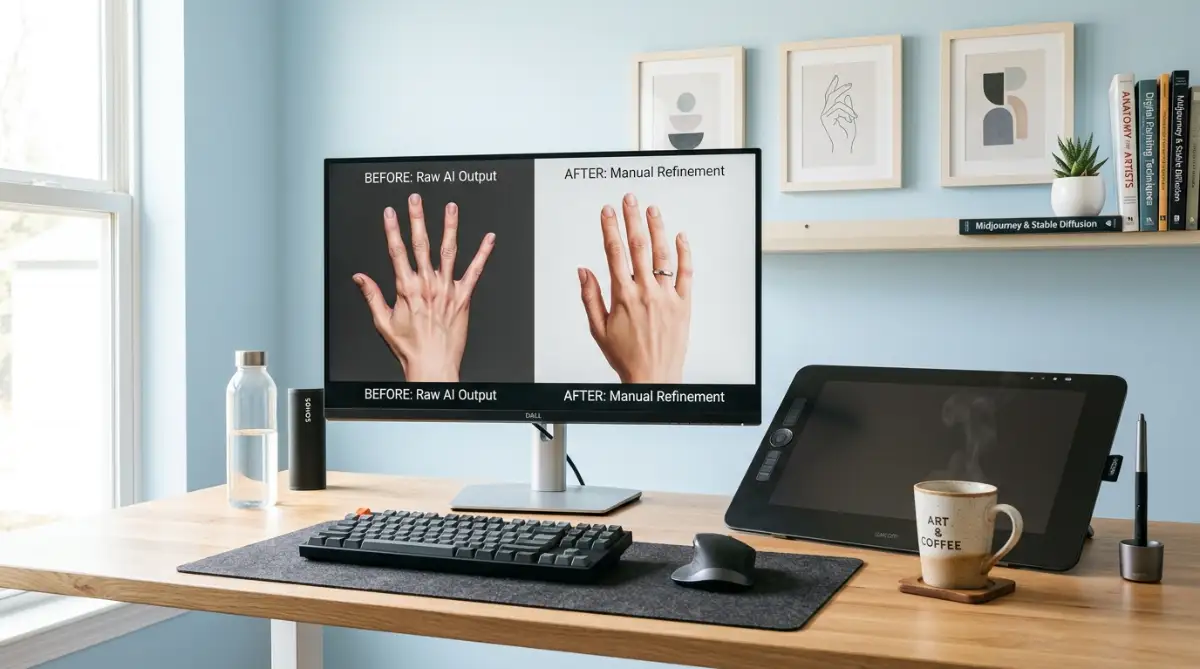
The Nightmare of Glitched Fingers and Melted Faces
I still remember spending three hours tweaking a portrait prompt, only to end up with a character holding a coffee cup with seven tangled fingers. My heart completely sank because the lighting and face were so beautiful, but that weird hand ruined the entire image. I hit the generate button fifty more times in pure frustration before I realized I was doing everything wrong.
You spend hours crafting the perfect text prompt, picking the right colors, and waiting with intense excitement for your image to generate. The loading bar reaches completion, and your screen displays a stunning, cinematic portrait with gorgeous lighting.
Your heart sinks as you look closer at the details and notice a horrifying mistake in the composition. The character has six webbed fingers growing from their hand, a melted eyeball sliding down their cheek, or an ear growing out of their neck.
These disturbing anatomical glitches instantly turn your creative joy into a stressful battle of re-rolling prompts over and over. You feel completely helpless and angry at the software, wondering why computers struggle with the most basic parts of human anatomy.
Why Traditional AI Prompt Shortcuts Fail You
When desperate creators try to fix bad hands and blurred faces, they often rely on incorrect methods that end up wasting their time. Rushing to add simple quality words to your prompt without understanding how the model thinks leads to continuous frustration.
Here is why common quick-fix prompt techniques usually fail:
- Adding useless phrases like "perfect hands": The AI model does not know what "perfect" means mathematically, so it ignores the word completely.
- Believing that modern AI can never generate correct anatomy: Assuming the technology is permanently broken keeps you from learning the editing tools.
- Downloading cheap, ad-filled mobile generator apps: Most free phone apps use outdated models that are incapable of rendering complex hand structures.
- Ignoring how diffusion models actually process hands: Failing to realize that the AI sees hands as simple patterns of light and dark causes you to write bad prompts.
- Expecting a flawless image on your very first try: Refusing to use post-processing or inpainting tools ensures your finished artwork will always look glitched.
How Creative Frustration Drains Your Artistic Confidence
Struggling with distorted anatomy does more than just ruin your digital files; it impacts your creative self-esteem.
- Feeling like a failure compared to other creators: You see flawless portraits posted online and assume you are simply not talented enough to use the software.
- Anxiety when sharing your artwork with others: You hold back from posting your creations on social media because you fear people will mock the glitched details.
- Frustration from constantly starting over from scratch: Spending your limited free time generating the same image fifty times drains the fun out of your hobby.
- The feeling of being left behind by technology: Watching new software updates roll out without knowing how to use them makes you feel completely overwhelmed.
Fortunately, you do not need to be a professional graphic designer or a computer programmer to fix these issues. By using smart editing tools and understanding how neural networks process shapes, you can easily repair glitched hands and faces today.
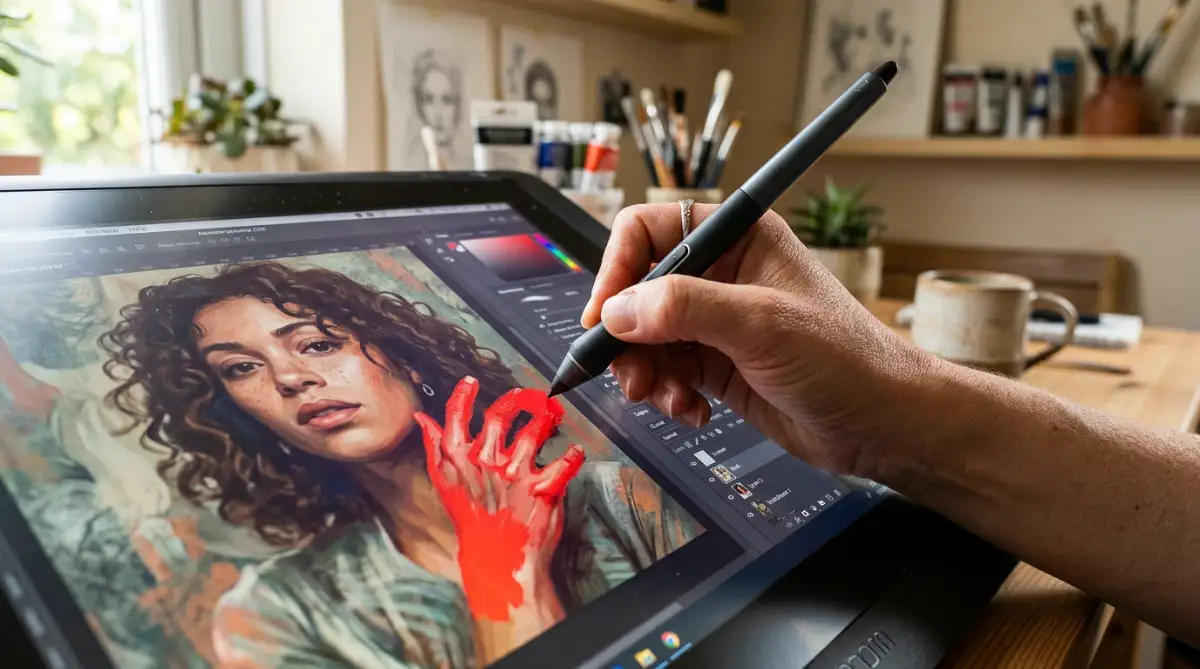
The Practical DIY Roadmap to Flawless AI Anatomy
To fix distorted hands and faces successfully, you must realize that the AI generator does not understand human skeleton structures. The computer is simply trying to recreate patterns of light, shadow, and color that it learned during its training.
Think of your image editing process like a skilled surgeon performing a delicate joint repair.
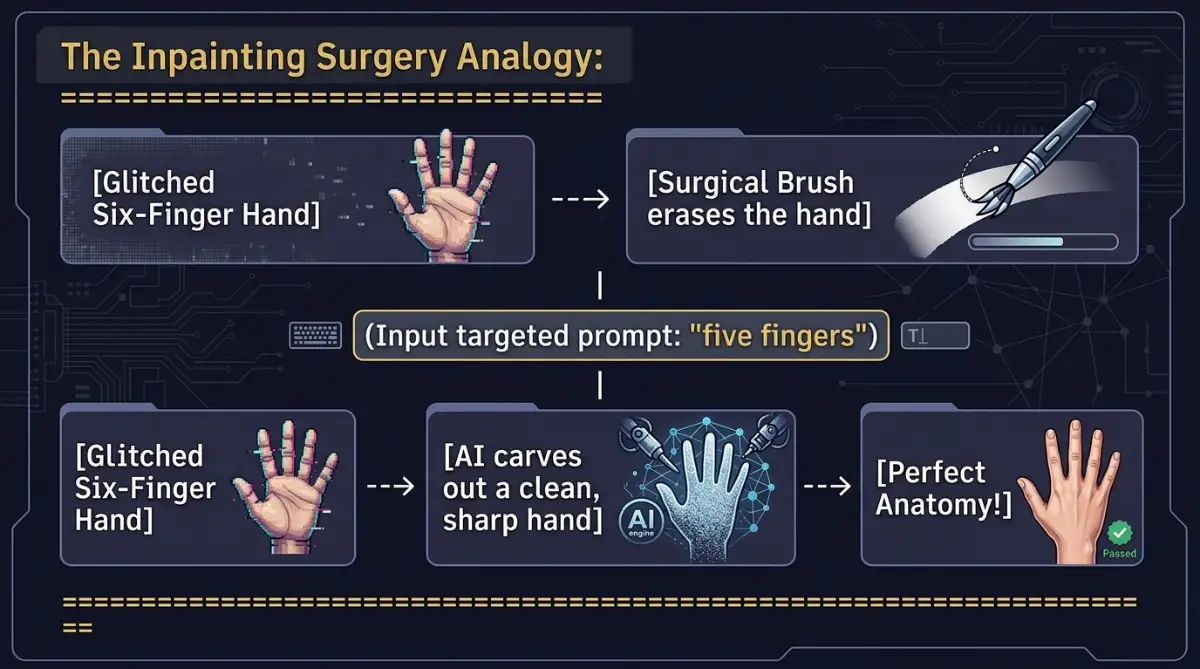
Alt Text : The Inpainting Surgery Analogy:
The Inpainting Surgery Analogy:
=======================================
[Glitched Six-Finger Hand] ---> [Surgical Brush erases the hand]
                                          |
                              (Input targeted prompt: "five fingers")
                                          |
[Glitched Six-Finger Hand] ---> [AI carves out a clean, sharp hand] ---> [Perfect Anatomy!]
=======================================
You do not need to throw away the whole body to fix a bad hand; you simply paint over the flawed area and let the AI try again on that specific spot.
We will show you the first three essential steps to perform this digital surgery safely and effectively.
Step 1: The Surgical Precision of Inpainting (Stable Diffusion & Midjourney)
Want to see digital anatomy surgery in real-time? Check out this quick video walkthrough that demonstrates exact inpainting brush techniques so you can fix bad hands without starting from scratch!
The most powerful tool for fixing anatomical mistakes is a software feature called inpainting (often called "Vary Region" in Midjourney). This tool acts like a smart digital eraser that lets you target specific areas of your image.
How Inpainting Performs Digital Surgery
Instead of generating a completely new image, inpainting allows you to freeze the beautiful parts of your picture while actively rebuilding the flawed parts.
You simply paint over the bad hand or face with a brush tool, creating a black mask over the glitched area.
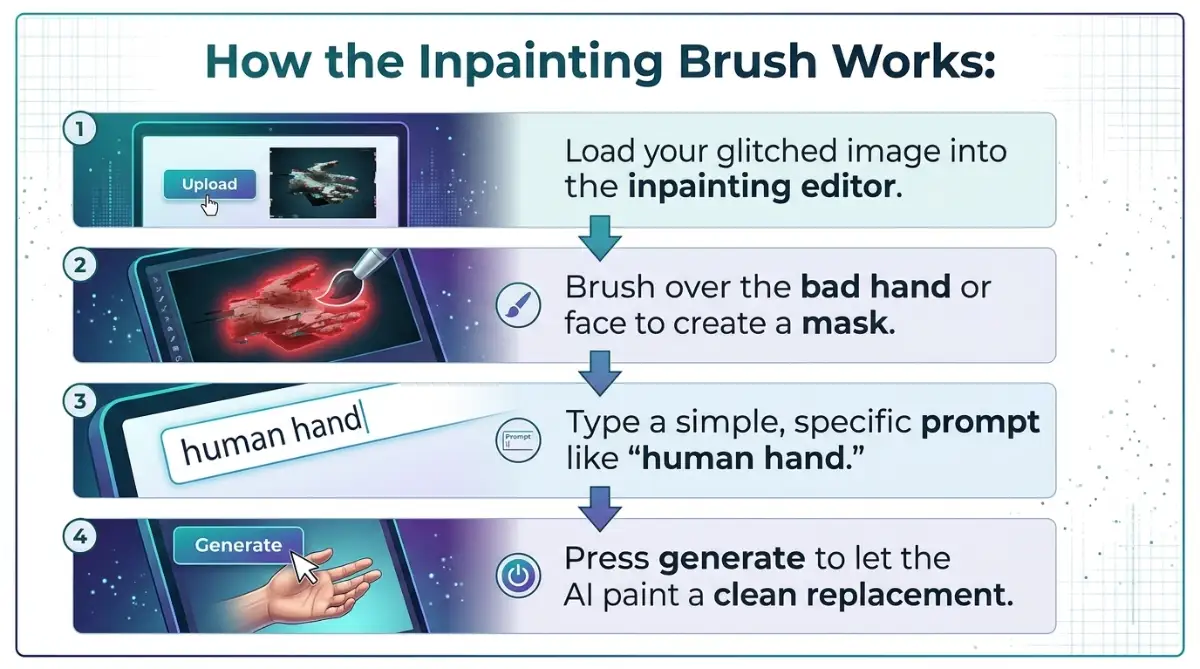
Alt Text : How the Inpainting Brush Works:
How the Inpainting Brush Works:
+---------------------------------------------------------------+
| Step | Action                                                 |
+---------------------------------------------------------------+
| 1    | Load your glitched image into the inpainting editor.   |
| 2    | Brush over the bad hand or face to create a mask.      |
| 3    | Type a simple, specific prompt like "human hand."     |
| 4    | Press generate to let the AI paint a clean replacement.|
+---------------------------------------------------------------+
The AI will ignore the rest of the canvas, focusing all its processing power on drawing a clean, correct hand inside the masked area.
Setting Your Inpainting Parameters
To get the best results, you must set your denoising strength correctly in your software settings.
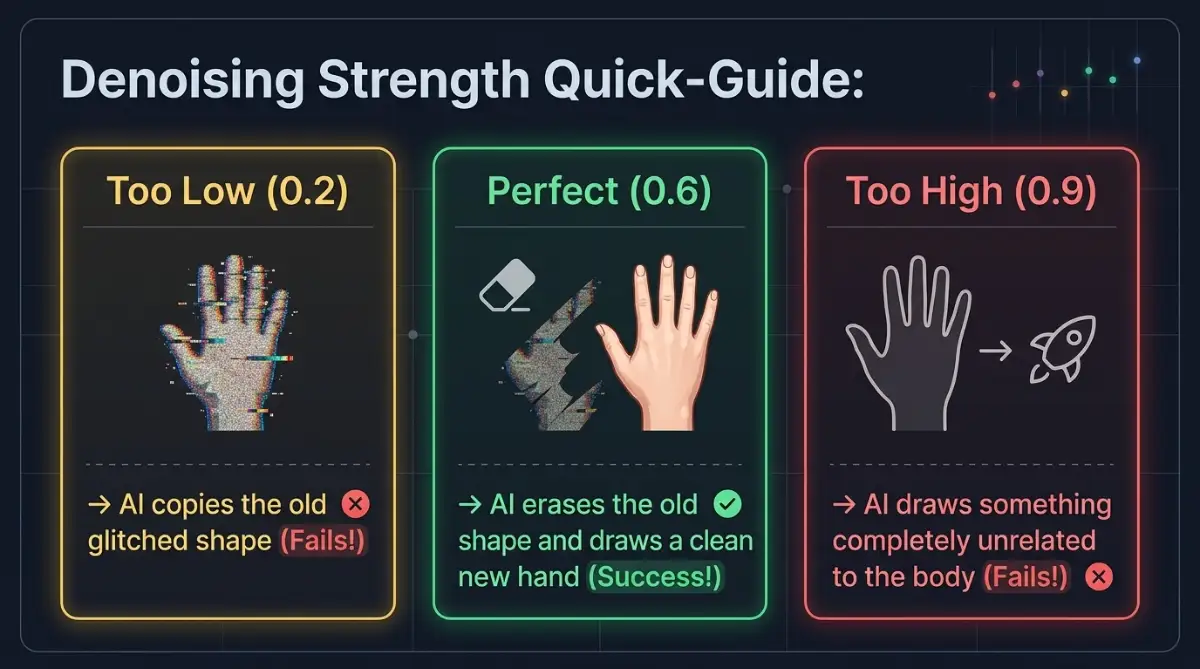
If you set the denoising strength too low (below 0.3), the AI will simply copy the old glitched six-finger shape.
Alt Text : Denoising Strength Quick-Guide:
Denoising Strength Quick-Guide:
------------------------------------------
Too Low (0.2)  -> AI copies the old glitched shape (Fails!)
Perfect (0.6)  -> AI erases the old shape and draws a clean new hand (Success!)
Too High (0.9) -> AI draws something completely unrelated to the body (Fails!)
------------------------------------------
Always set your denoising strength to 0.5 or 0.6 when fixing hands or eyes.
Here is a big mistake I made for months: I used to set my inpainting strength way too high, which created floating, detached fingers. Once I locked my denoising strength around 0.55 and painted a tight mask, my fix rate jumped from terrible to almost 100% success on the first try.
This sweet spot gives the neural network enough freedom to erase the old glitch and draw a clean, correct hand, while keeping the lighting and color matching the rest of the body.
Step 2: Building a Powerful Negative Prompt Shield
If you want to prevent distorted anatomy before it ever appears on your canvas, you must master the art of the negative prompt.
A negative prompt is a list of specific concepts and shapes that you want the generator to actively avoid.
Placing "No Trespassing" Signs on Your Canvas
Think of a negative prompt like placing clear "no trespassing" signs around the edges of your blank canvas.
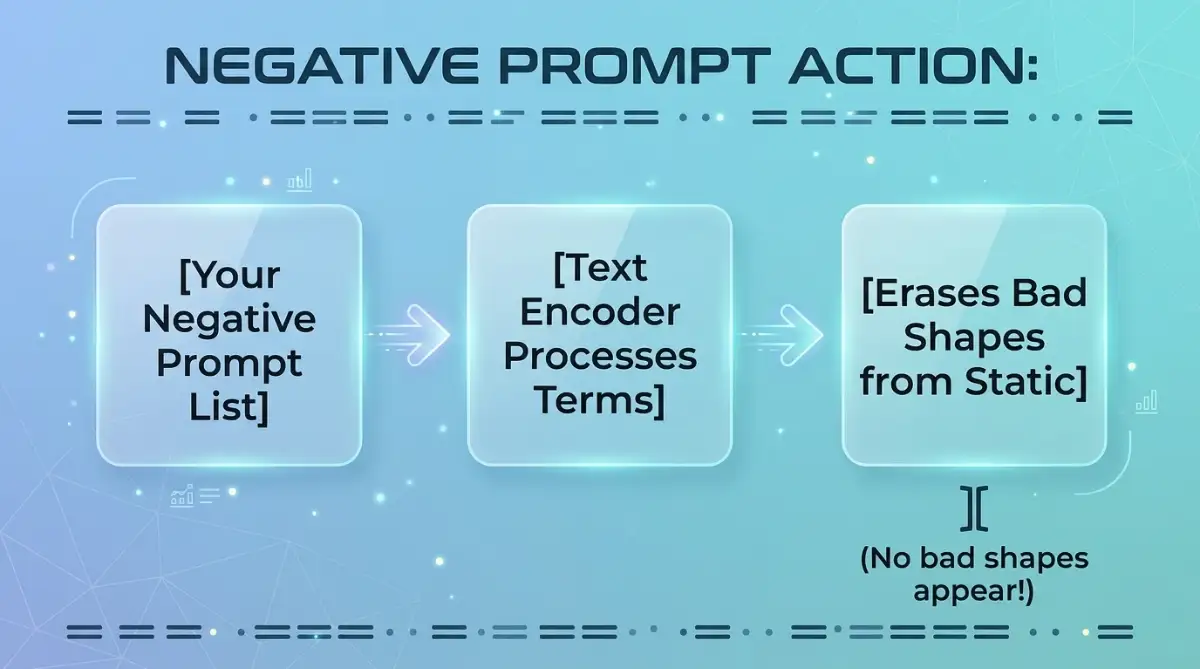
You are telling the diffusion model: "When you are carving out the image from the static noise, do not use these ugly shapes."
Alt Text : Negative Prompt Action:
Negative Prompt Action:
=======================================
[Your Negative Prompt List] ---> [Text Encoder Processes Terms] ---> [Erases Bad Shapes from Static]
                                                                                |
                                                                     (No bad shapes appear!)
=======================================
This simple barrier keep malformed limbs, extra digits, and blurred features off your screen.
Crafting Your Negative Prompt List
Avoid writing long, confusing paragraphs; instead, use short, precise tokens separated by commas.
- For hands: "extra fingers, mutated hands, fused digits, missing limbs, malformed fingers, distorted hands"
- For faces: "mutated face, blurred eyes, extra ears, double head, asymmetric features, low quality"
Save this text block in a simple notepad file on your desktop so you can quickly copy and paste it into your generator's negative prompt box before every project.
Using a strong negative prompt is the absolute key to helping the generator maintain clean, human-like anatomical structures.
Step 3: Activating Face Restoration Engines (CodeFormer & GFPGAN)
If your generated portrait features a beautiful body but a slightly blurred, melted, or asymmetrical face, you do not need to repaint it by hand.
You can use specialized face restoration engines to clean up the details instantly.
The Magic of Specialized Face Networks
Standard image generators are designed to understand everything from mountains to dogs, which means they do not focus solely on the fine details of human faces.
Face restoration tools like CodeFormer or GFPGAN are neural networks that were trained exclusively on millions of high-resolution human portraits.