
Steps to Use AI Image Tools for Creating Social Media Graphics
You sit down to create a simple graphic for tomorrow's post, and an hour later, you're still tweaking colors, resizing text, and wondering why something so small is taking so long.
I used to spend almost two full hours every single night just trying to design a single Instagram post. I would constantly mess around with fonts, change background colors ten times, and end up feeling totally frustrated because my graphics still looked amateurish. Once I started letting AI tools handle the heavy visual creation for me, my entire workflow changed almost overnight.
Meanwhile, your content calendar keeps piling up, and the actual writing or strategy work gets pushed further behind because visuals eat up so much of your time.
Here's some reassurance before we go any further. AI image tools have genuinely changed how quickly polished social media graphics can come together, and you don't need design training to use them effectively.
Why Creating Social Graphics Feels Like Such a Time Drain
Designing graphics for social media doesn't just take time. It chips away at the energy you have left for the content and strategy that actually matters most.
- You spend more time formatting a single graphic than you spent writing the actual caption
- You're not confident in your own design instincts, so you second-guess every color and font choice
- Templates from generic design tools start to feel repetitive across your whole feed
- You feel like visuals are holding back how often you're able to post consistently
A lot of people either avoid visual content altogether or rely entirely on the same handful of overused templates, which limits how distinctive their posts actually look.
- Traditional design tools have a real learning curve, which discourages consistent use for people without a design background
- Relying only on stock photos or generic templates often makes content blend in rather than stand out
- Without a clear, repeatable process, creating graphics becomes a slow, inconsistent part of content creation rather than a smooth, predictable step
- Many people don't realize how much of the design process AI tools can now handle, so they keep doing everything manually out of habit
There's a real frustration that builds from this too. Wanting your content to look professional and consistent, while not having the time or design background to make that happen quickly, creates ongoing pressure around something that should feel creative, not exhausting.
- It can make content creation feel like a chore rather than something you actually enjoy
- It adds stress to maintaining a consistent posting schedule, since visuals often become the bottleneck
- It can make your content feel less competitive next to accounts that clearly have more design resources or time available
Here's the encouraging part: AI image tools can now handle a significant portion of the visual creation process, dramatically cutting down the time and skill required to produce polished, professional-looking graphics.
Modern AI image generators can create custom backgrounds, illustrations, and visual elements directly from text descriptions, removing the need to search through stock photo libraries or design elements completely from scratch. This shifts your role from manual creator to creative director, guiding the visual direction rather than building every pixel yourself.
Understanding how to structure your prompts and workflow effectively is what separates quick, generic results from polished, on-brand graphics. The steps below walk through exactly how to set this up.
What You'll Need Before You Start
Gather these basics to set up an efficient AI graphic workflow:
- An AI image generation tool, ideally one that supports specific aspect ratios for social media
- A basic editing tool for adding text overlays, like a simple graphic design app
- A short brand style reference, like your typical color palette or visual tone
- A content calendar or list of upcoming post topics
- Platform-specific size requirements for the networks you post on most often
Most of this can be set up quickly, even if you're starting from nothing.
Step 1: Write Prompts That Reflect Your Brand's Visual Style
This is the step that determines whether your AI generated graphics look randomly generic or distinctly yours.
Include specific style descriptors in your prompt, like "minimalist," "warm pastel tones," or "bold modern typography style," depending on your brand's actual visual identity. Vague prompts produce vague, generic-looking results.
Reference a consistent visual theme across your prompts, like always specifying a particular color palette or mood, even as the actual subject matter changes from post to post. This builds visual consistency across your feed, even though each individual image is generated separately.
Think of this the way you'd think about briefing a graphic designer. The more specific and consistent your direction, the more cohesive the final results will look across multiple projects.
Step 2: Generate at the Correct Aspect Ratio From the Start
Resizing and cropping after the fact often ruins composition or cuts off important visual elements.
Set your AI tool to generate images at the specific aspect ratio your target platform requires, like a square format for certain feed posts or a vertical format for stories. Most modern AI image tools support this directly within their settings.
If your tool doesn't support custom ratios directly, generate at a slightly larger size than needed, giving yourself room to crop precisely afterward without losing important visual elements near the edges.
This single habit saves significant editing time later and prevents the awkward cropping that often happens when graphics are generated at the wrong proportions from the start.
Step 3: Layer Text and Branding Elements After Generation
Want to see how easy it is to generate social media posts using AI tools step-by-step? Watch this quick video guide to master the process and create stunning graphics in minutes!
Here is a mistake I made for months: I kept trying to force AI generators to spell out entire headlines inside the image, which always resulted in messy, scrambled letters. My best realization was to let AI create a clean, clutter-free background image first, and then add my text manually using a basic editor.
AI image tools excel at creating backgrounds, illustrations, and visual moods, but text within AI generated images is often unreliable or distorted.
Generate your background or main visual element through AI first, leaving space intentionally for text, like a calmer area in the composition where words will sit clearly. Mention this directly in your prompt, such as "with empty space in the lower third for text overlay."
Add your actual text, logo, and branding elements afterward using a separate, simple editing tool. This combination, AI generated visuals plus manually added text, produces far cleaner, more reliable results than relying on AI to generate readable text directly within the image.
If you've created even one graphic using this AI-plus-manual-text workflow, you've already built the core process that scales easily across your entire content calendar. The next part of this guide covers more advanced techniques and the mistakes that tend to slow down or weaken this kind of AI-assisted design workflow.
Building a Faster, More Consistent Workflow
Once basic prompt writing and aspect ratio setup feel comfortable, these next techniques help you move from creating individual graphics to running an efficient, repeatable system.
Trick 1: Build a Reusable Prompt Template for Your Brand
Create a base prompt structure you reuse across most graphics, with just the subject matter changing each time. Something like: "[subject], minimalist style, soft pastel color palette, clean composition, empty space in the lower third for text."
Save this template somewhere easy to access, swapping out only the bracketed subject for each new post topic. This single habit saves significant time while keeping your visual style consistent across dozens of future graphics.
Think of this the way you'd think about a recipe you've perfected. You don't reinvent the process every time. You follow a reliable structure and adjust only the specific ingredient that changes.
Trick 2: Batch Generate Multiple Graphics in One Sitting
Instead of creating graphics one at a time as each post approaches, generate a batch of several graphics in a single sitting, using your saved prompt template with different subjects for each.
This approach reduces the mental switching cost of repeatedly returning to the design process, and it builds a visual content bank you can draw from throughout the week or month ahead.
Review and select your favorites from each batch, since generating several variations per topic increases the odds of getting at least one clean, usable result without needing repeated individual attempts.
Trick 3: Create Branded Templates for Recurring Post Types
For recurring content formats, like weekly tips or quote graphics, build a consistent template structure that only requires swapping the AI generated background and the specific text each time.
This combination of a consistent layout with a fresh, AI generated visual keeps recurring content feeling fresh while still maintaining strong brand recognition across your feed.
Once this template exists, creating that week's version becomes a quick, repeatable task rather than a fresh design decision every single time.
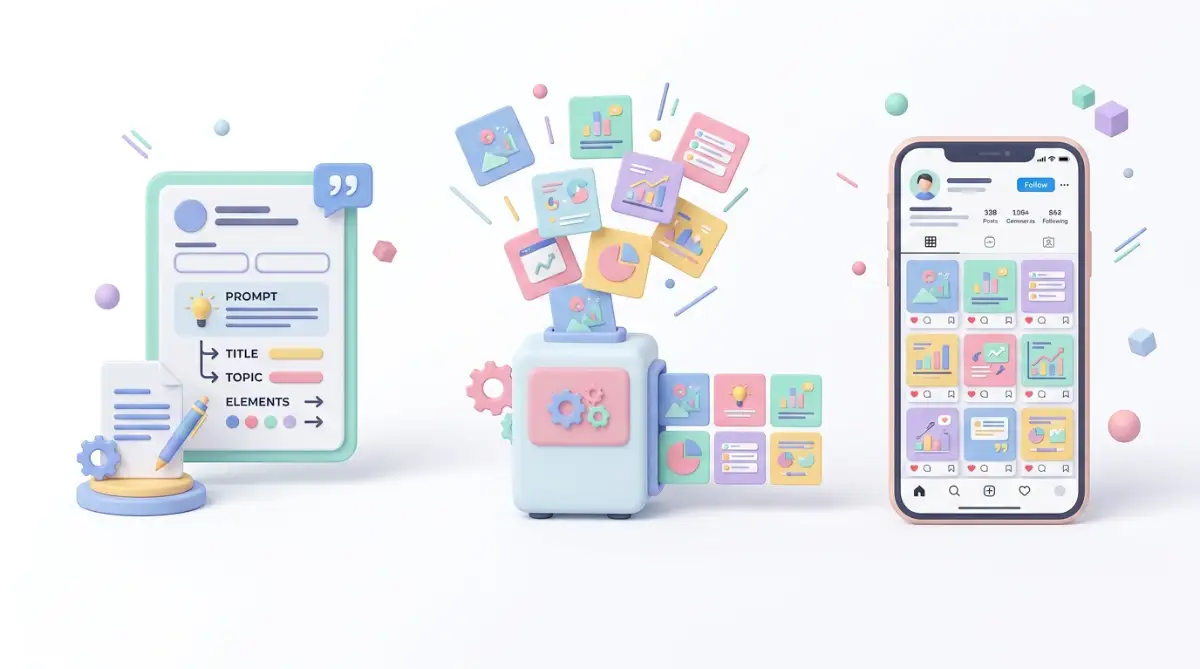
Making This Workflow Sustainable Over Time
A strong process today is only valuable if it holds up across weeks and months of regular content creation.
A few habits help maintain consistency long term:
- Periodically review your past month's graphics together, checking for visual consistency and adjusting your prompt template if your style has started to drift
- Keep your brand style reference updated, especially if your visual identity evolves over time
- Stay aware of new features in your AI tool, since many platforms continue adding capabilities that can streamline your workflow further
- Build a simple folder system for organizing generated graphics, separating finished, ready-to-post visuals from drafts or rejected attempts
Think of this the way you'