Why Aspect Ratio Matters When Generating Images With Midjourney
You spend real time crafting the perfect prompt, picturing exactly how the final image should look. Then it generates, and something feels off. The composition is cramped, an important element got cut at the edge, or the whole scene feels squeezed into the wrong shape.
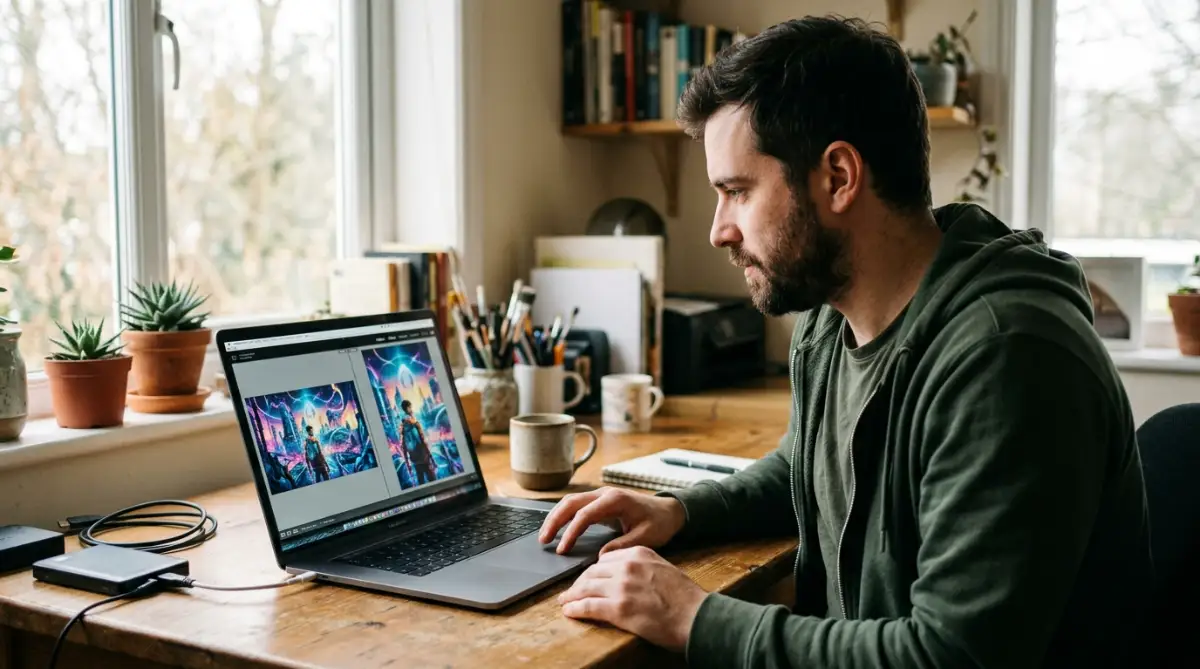
I used to spend hours writing detailed prompts in Midjourney, only to get images that looked awkwardly cropped and squished. I kept blaming my descriptive words and thought I was just terrible at prompting. It took me weeks of wasted GPU hours to realize that the square default shape was ruining my visual ideas before the AI even finished generating them.
It's a small detail that causes a surprisingly big problem, and it's easy to overlook entirely if you don't know to look for it.
Here's some reassurance before we go any further. This issue almost always comes down to one specific setting: aspect ratio. Once you understand why it matters, fixing it becomes simple and consistent.
Why Ignoring Aspect Ratio Causes So Much Frustration
Getting an awkwardly proportioned image doesn't just look slightly off. It can quietly undermine an otherwise well-crafted prompt.
- You write a detailed, thoughtful prompt, only to get a result that feels cramped or oddly cropped
- You crop the image afterward, only to lose an important visual element near the edge
- You're not sure why the same scene looks completely different in proportion depending on the settings you used
- You've noticed some of your images look polished and intentional, while others feel randomly squeezed into the wrong shape
A lot of users focus entirely on the descriptive wording of their prompt, without realizing that proportion settings shape the composition just as significantly.
- Many people don't realize aspect ratio is a separate setting from the actual scene description in their prompt
- Default aspect ratios don't always match the intended use case, like a square format default when you actually need a vertical image
- Cropping after generation can cut off elements the AI specifically composed to fit a different shape
- Without understanding how ratio affects composition, it's easy to blame the prompt itself when proportion was the real issue
There's a real frustration tied to this oversight. Putting genuine creative thought into a prompt, only to have the final composition undermined by a setting you didn't even realize mattered, feels needlessly avoidable once you understand the cause.
- It can make finished images feel less polished or intentional than the effort you put into the prompt itself
- It adds extra editing time, since cropping after the fact rarely produces the same quality as a properly composed original
- It can make you hesitant to use generated images for specific projects, worried about needing extensive cleanup work afterward
Here's the encouraging part: aspect ratio is one of the simplest settings to understand and control, and getting it right from the start eliminates most cropping-related composition problems entirely.
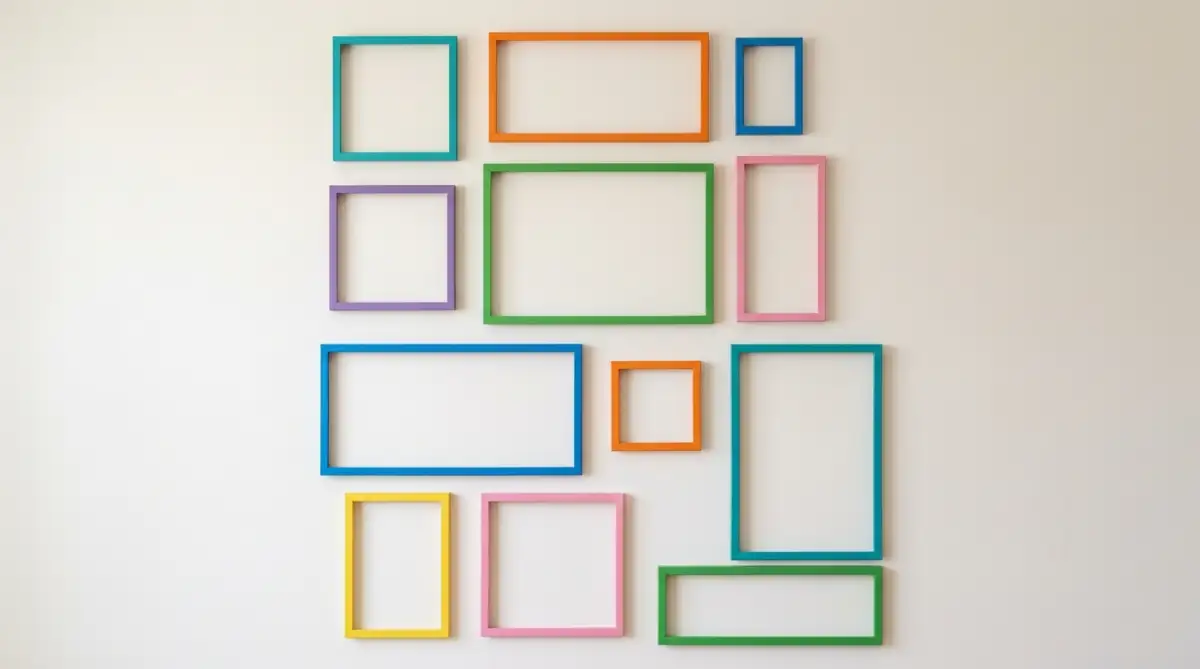
Aspect ratio refers to the proportional relationship between an image's width and height, like a square shape, a wide horizontal shape, or a tall vertical shape. This setting directly shapes how the AI composes the scene during generation, influencing where elements get placed, how much space surrounds the main subject, and how the overall composition balances within that specific shape.
This means aspect ratio isn't just a cropping decision made after the fact. It's a compositional decision the AI makes from the very first generation step. Setting it correctly before generating produces a meaningfully different, and usually much better, result than generating in one shape and cropping into another afterward.
What You'll Need Before You Start
Gather this information before generating your next batch of images:
- A clear sense of your final use case, like a social media post, a printed piece, or a website banner
- The specific dimension requirements for that use case, if applicable
- Familiarity with your tool's aspect ratio parameter or setting
- A few test prompts to compare results across different ratios
Knowing your end use case before you start generating saves significant time and avoids unnecessary cropping later.
Step 1: Identify Your Final Use Case Before Generating Anything
This single step prevents the majority of aspect ratio problems before they even happen.
Determine exactly where the image will be used, since different platforms and purposes call for very different proportions. A square format suits certain feed posts well, while a tall vertical format suits story formats or posters far better.
Write down the specific ratio you need before opening your prompt, rather than figuring it out after you've already generated something in the wrong shape. This small planning step changes your entire workflow from reactive cropping to intentional composition.
Think of this the way you'd think about choosing a canvas size before painting. A painter wouldn't start a wide landscape on a small square canvas and expect to crop it into a portrait afterward without losing something important.
Step 2: Set the Aspect Ratio Parameter Directly in Your Prompt
Want to see how this prompt parameter works in real time? Watch this quick video guide to learn how to change your image dimensions easily!
Here is a small trick I learned the hard way: always type your parameter at the very end of your prompt and double-check the spacing before hitting enter. Missing a simple space after --ar used to cause my commands to fail quietly, dumping me right back into a standard square box.
Most AI image generation tools, including Midjourney, allow you to specify aspect ratio directly using a parameter added to your prompt, rather than relying on a separate menu or default setting alone.
Add your desired ratio clearly within the prompt itself, following your tool's specific syntax for that parameter. This tells the system exactly what shape to compose the image into from the very first generation step, rather than defaulting to a standard shape you'll need to crop later.
Double-check your typed ratio before generating, since a small typo in this parameter can default back to a standard shape without any warning. This quick check prevents wasted generations in the wrong proportion.
Step 3: Compare the Same Prompt Across Different Ratios
Understanding how much ratio actually changes a composition becomes much clearer through direct comparison.
Generate the exact same descriptive prompt using two or three different aspect ratios, keeping every other word identical. Notice how the AI redistributes space, repositions the subject, and adjusts background elements differently in each version.
Pay attention to how a wide ratio tends to emphasize horizontal space and environment, while a tall ratio tends to emphasize vertical elements and a more intimate framing around the main subject. This direct comparison builds an intuitive sense of which ratio suits which type of scene.
If you've tried generating the same prompt across a couple of different ratios and noticed how differently the composition turned out, you've already grasped the core reason this setting matters so much. The next part of this guide covers more advanced ratio considerations and the mistakes that tend to cause the most composition problems.
Choosing the Right Ratio for the Right Scene
Once setting an aspect ratio parameter feels routine, the next skill is choosing the ratio that actually suits your specific scene, rather than defaulting to the same shape every time.
Trick 1: Match Ratio to Subject Orientation
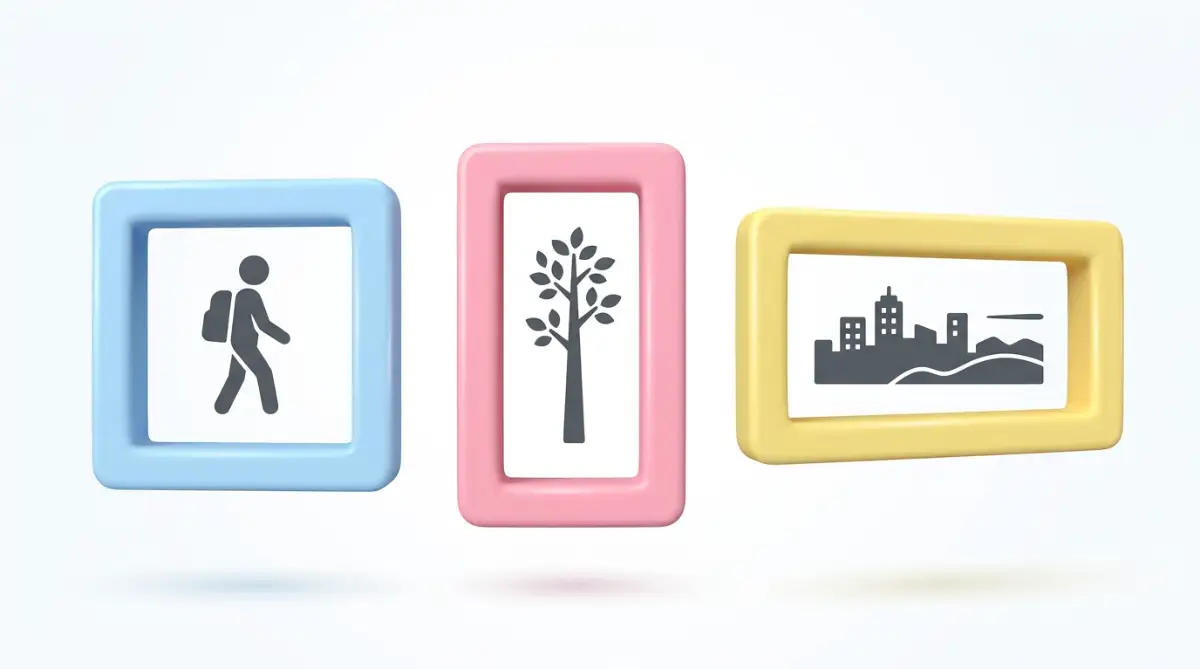
A single standing subject, like a person or a tall building, generally suits a vertical ratio far better than a wide one. Vertical framing naturally draws the eye along the subject's height, creating a more intentional, balanced composition.
A wide scene, like a landscape, a group of subjects spread horizontally, or an environment-heavy composition, suits a wide ratio better. This shape gives the AI room to compose background and surrounding space without cramming everything toward the center.
Think of this the way a photographer thinks about framing a shot before pressing the shutter. The subject's natural shape often suggests the most flattering frame shape to match it.
Trick 2: Use Square Ratios for Centered, Balanced Compositions
A square ratio tends to work especially well for centered subjects, like a single object, a portrait facing directly forward, or a symmetrical composition. The equal width and height naturally support a balanced, centered arrangement.
This makes square ratios a reliable default for feed-style content, where centered, easily recognizable compositions tend to perform well visually.
Trick 3: Experiment With Wider Cinematic Ratios for Dramatic Scenes
Extremely wide, cinematic-style ratios can add a dramatic, expansive feeling to landscape or environmental scenes, similar to how widescreen film formats create a sense of scale.
This ratio works especially well for scenes meant to feel vast or atmospheric, like a sweeping landscape or a wide architectural scene, where extra horizontal space reinforces the feeling of scale rather than feeling like wasted space.
Reserve this ratio specifically for scenes that benefit from that expansive feeling, since it can feel awkward or stretched if applied to a simple, centered subject that doesn't need that extra width.
Building Better Aspect Ratio Habits Over Time
Getting comfortable with ratio selection happens gradually, through repeated comparison and intentional practice.
A few habits help build this skill over time:
- Keep a personal reference of which ratios worked well for which types of scenes, building your own intuitive guide based on real results rather than starting from scratch each time
- Default to planning your end use case first, before writing your descriptive prompt, so ratio becomes a starting decision rather than an afterthought
- Revisit older generations occasionally, noticing in hindsight which ratio choices worked well and which might have benefited from a different shape
- Stay aware of any new ratio options or features your specific tool introduces, since these settings and capabilities continue to be refined and expanded over time
Think of this the way you'd think about developing an eye for photography composition. Repeated, intentional practice builds an instinct that eventually feels automatic, rather than something you have to consciously calculate every time.
One detail worth knowing: different AI image generation platforms may support different specific ratio options or syntax for setting them. If you work across multiple tools, it's worth double-checking each platform's current documentation for the exact parameter format it expects, since these details can vary and change between tools and versions.
Five Mistakes That Undermine Good Composition
Even with a basic understanding of aspect ratio, these common habits can still produce weaker results.
Mistake 1: Using the Default Ratio Without Considering the Scene
Sticking with whatever ratio loads by default, regardless of the actual scene being generated, misses an easy opportunity to improve composition with almost no extra effort. Match the ratio intentionally to your subject.
Mistake 2: Cropping Heavily After Generation Instead of Setting Ratio First
Generating in one shape and cropping significantly afterward often removes elements the AI specifically composed to fit the original proportions. Setting the correct ratio before generating preserves the intended composition.
Mistake 3: Using Extreme Ratios for Simple, Centered Subjects
Applying a very wide or very tall ratio to a simple, centered subject can create awkward, empty space that weakens the composition rather than adding intentional drama. Match ratio extremity to scenes that actually benefit from it.
Mistake 4: Ignoring Platform Requirements Until After Generating
Generating without knowing your final use case often means generating in the wrong proportion entirely, requiring a fresh generation rather than a simple adjustment. Always confirm your end use case first.
Mistake 5: Assuming Ratio Syntax Is Identical Across Every AI Tool
Applying the exact same parameter formatting across different AI image generation platforms can fail silently if that specific tool uses different syntax. Always confirm the correct format for the specific tool you're using.
Better Compositions Start With a Single Setting
Here's the most useful thing to take from this guide: aspect ratio isn't a minor technical detail. It's one of the first compositional decisions that shapes everything else about your final image.
Matching ratio to subject, planning your end use case first, and avoiding unnecessary post-generation cropping together solve the majority of composition problems many people assume are caused by weak prompt writing alone.
This single setting, once understood and applied intentionally, often improves the polish and usability of generated images more noticeably than any other single adjustment.
Try generating your next image with the ratio chosen deliberately, before writing the rest of your prompt. That small shift in order is often the moment compositions start looking genuinely intentional rather than accidentally cropped.
Taking control of your image shape completely changes how you build your prompts. Give this simple tweak a try on your very next prompt, and watch how quickly your images turn out exactly the way you pictured them!
Disclaimer:
Please review the following safety warnings, platform terms, and technical disclosures before using aspect ratio parameters or composition workflows based on this guide:
- For Educational and Informational Purposes Only: The techniques, parameters, and tips described in this article are intended strictly for general educational purposes. Because AI diffusion models operate on non-deterministic algorithms, the exact composition, placement, and visual balance of generated elements will vary widely depending on your specific prompts, seed values, software settings, and active model versions.
- Billing and GPU Hours Consumption: Step 3 recommends comparing the same prompt across different aspect ratios. Be aware that generating multiple variations and test batches consumes platform generation credits or "Fast GPU Hours" (depending on your subscription tier). This iterative process can rapidly deplete your monthly subscription allocation and may result in additional charges.
- Syntax and Platform Specificity: Parameter commands (such as --ar in Midjourney) are highly platform-specific and sensitive to exact spacing and characters. Attempting to use Midjourney syntax on other platforms (such as DALL-E, Stable Diffusion, or Adobe Firefly) or within unsupported software versions may result in command errors or default square outputs. Always verify the current documentation for the specific generator you are using.
- Potential for Compositional Artifacts: While setting the correct aspect ratio before generating generally improves composition, using extreme ratios (very wide or very tall) can sometimes confuse the AI model's spatial mapping. This can introduce unintended visual artifacts, such as duplicated subjects, floating limbs, stretched textures, or warped perspective lines, due to the model attempting to fill unusual canvas dimensions.
- Resolution and Print Limitations: Matching the aspect ratio to your physical print size (e.g., posters or canvases) is a helpful formatting step, but the native digital output of most generators is too low for professional print quality. To avoid blurry or pixelated physical prints, you must separately process the generated images through an internal or external upscaler to achieve the correct dots per inch (DPI) required for printing.
- Limitation of Liability: The author and publisher of this article assume no responsibility or liability for any unexpected platform billing charges, generation errors, physical print formatting failures, or loss of computational hours resulting from the application or misinterpretation of the composition workflows described in this guide. Use all generative AI tools, parameters, and platform features at your own discretion and risk.